This page lists what OxiPhys can do and how accurate it is. Every number comes from
the OxiPhys validation suite (VALIDATION.md), where the settings are given and the runs can be
repeated. "App" means the desktop application (oxiphys-gui); "Python" means the scripting
interface (import oxiphys as ox). Everything the app does can also be scripted.
1. Geometry
| Ability | App | Python | Notes |
|---|---|---|---|
| Simple rectangle or box | yes | Mesh.rectangle, Mesh.cuboid |
Structured mesh, no Gmsh needed |
| 2D shapes: rectangle (optionally rounded), disk, ellipse, polygon | yes | Geometry(2) |
Combined by add, cut and intersect, in order |
| 3D shapes: box, cylinder, cone, sphere, torus | yes | Geometry(3) |
The same boolean operations |
| Extruded 2D profile (plates, fins, channels) | yes | extrude(profile, vector, layers=n) |
Draw 2D shapes, give a depth |
| Sketch features: extruded and revolved bosses and cuts, fillet, chamfer, linear and circular patterns, mirror (new in 0.7) | yes | fillet, chamfer, mirror, extrude, revolve |
See below |
| Parametric sketches: relations and driving dimensions solved together (new in 0.8) | yes | oxiphys.sketch, oxiphys.sketch_solve |
Fully, under and over defined sketches are reported, with the degrees of freedom left |
| Swept and lofted bosses and cuts, rib, shell, draft on extrusions, hole tool (new in 0.8) | yes | feature kinds sweep, loft, rib, shell, hole |
Hole sizes from ISO 273, ISO 4762 and ISO 10642 |
| Reference planes (offset, at an angle, through three points) and axes; sketches on flat faces (new in 0.8) | yes | feature kinds plane, axis |
|
| Mass properties: volume, area, mass, centre of mass, inertia (new in 0.8) | yes | drawing.mass_properties |
From the faceted surface of the part |
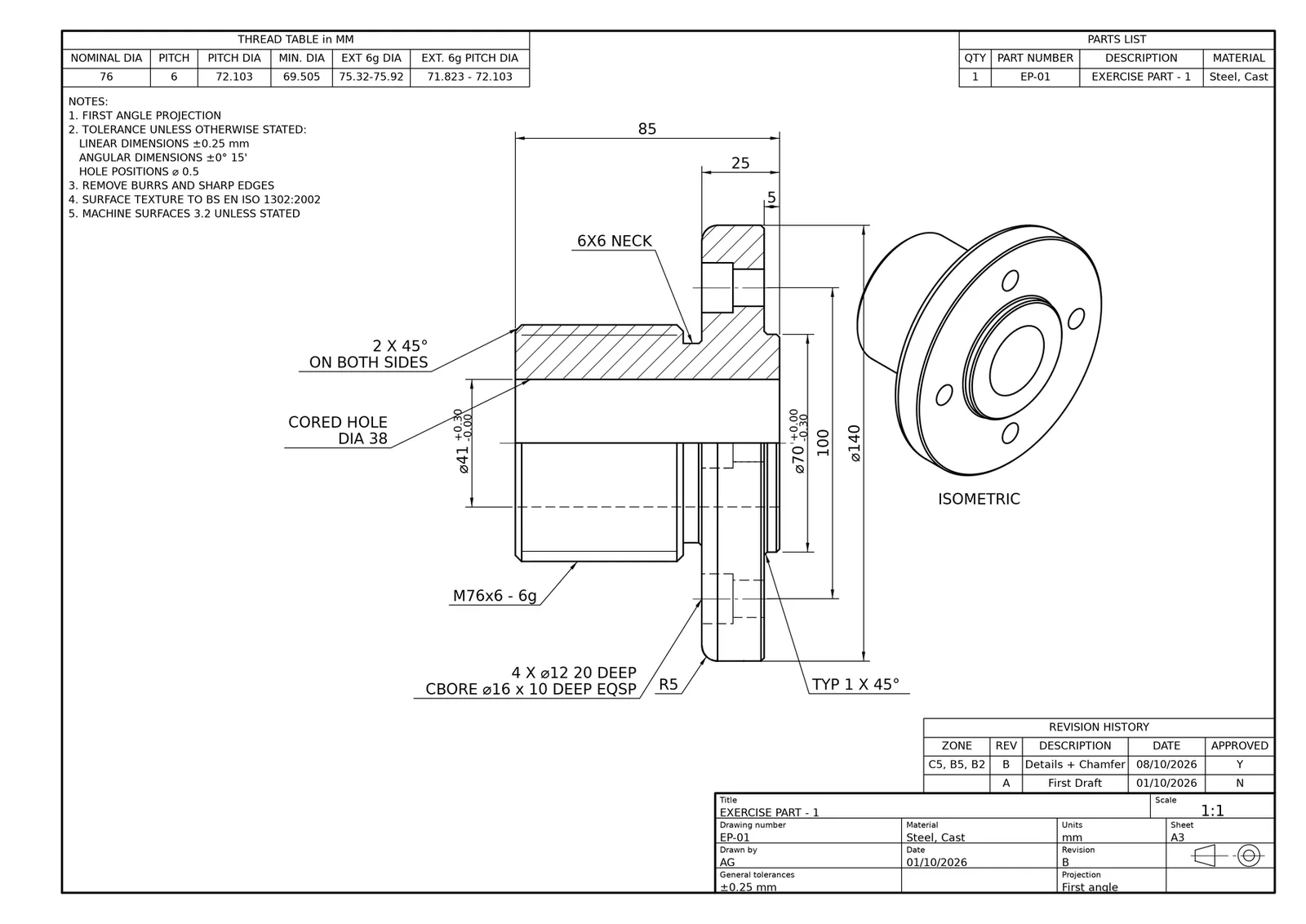
| Engineering drawings: standard and isometric views, sections, half sections, detail views (0.8.8), dimensions, notes, tables, title block (new in 0.8) | yes | drawing.render, drawing.save |
PDF, SVG, PNG and DXF (AutoCAD R12) |
| Translate, rotate, scale, free copies | no | translate, rotate, scale |
|
| STEP (.step, .stp) and IGES (.iges, .igs) import | yes | import_cad, open_geometry |
The unit stored in the file is converted to metres. Optional repair of small edges and faces, sewing into solids. Solids for 3D models; flat faces in z = 0 for 2D models |
| BREP (.brep) import | yes | import_cad(units=...) |
BREP carries no unit: you choose it |
| Imported parts combined with shapes | yes | cut, fuse, intersect |
For example, cut a slot or add a boss to a STEP part |
| Assemblies of touching solids | yes | automatic | Touching parts share their faces, so they are bonded |
| STL import (closed triangulated surfaces) | yes | import_stl |
Checked for closure first. Faces are found by a feature angle. The surface can be remeshed at your element size, or its triangles kept exactly. STL has no unit: you choose it |
| OxiPhys geometry file (.oxgeo) | yes | save_oxgeo, load_oxgeo, open_geometry |
JSON: shapes, imported parts, boundary names and options. Imported CAD files are embedded, so one file carries everything |
| Existing Gmsh meshes (.msh, MSH 2.2) | yes | Mesh.read |
Physical groups become boundary names |
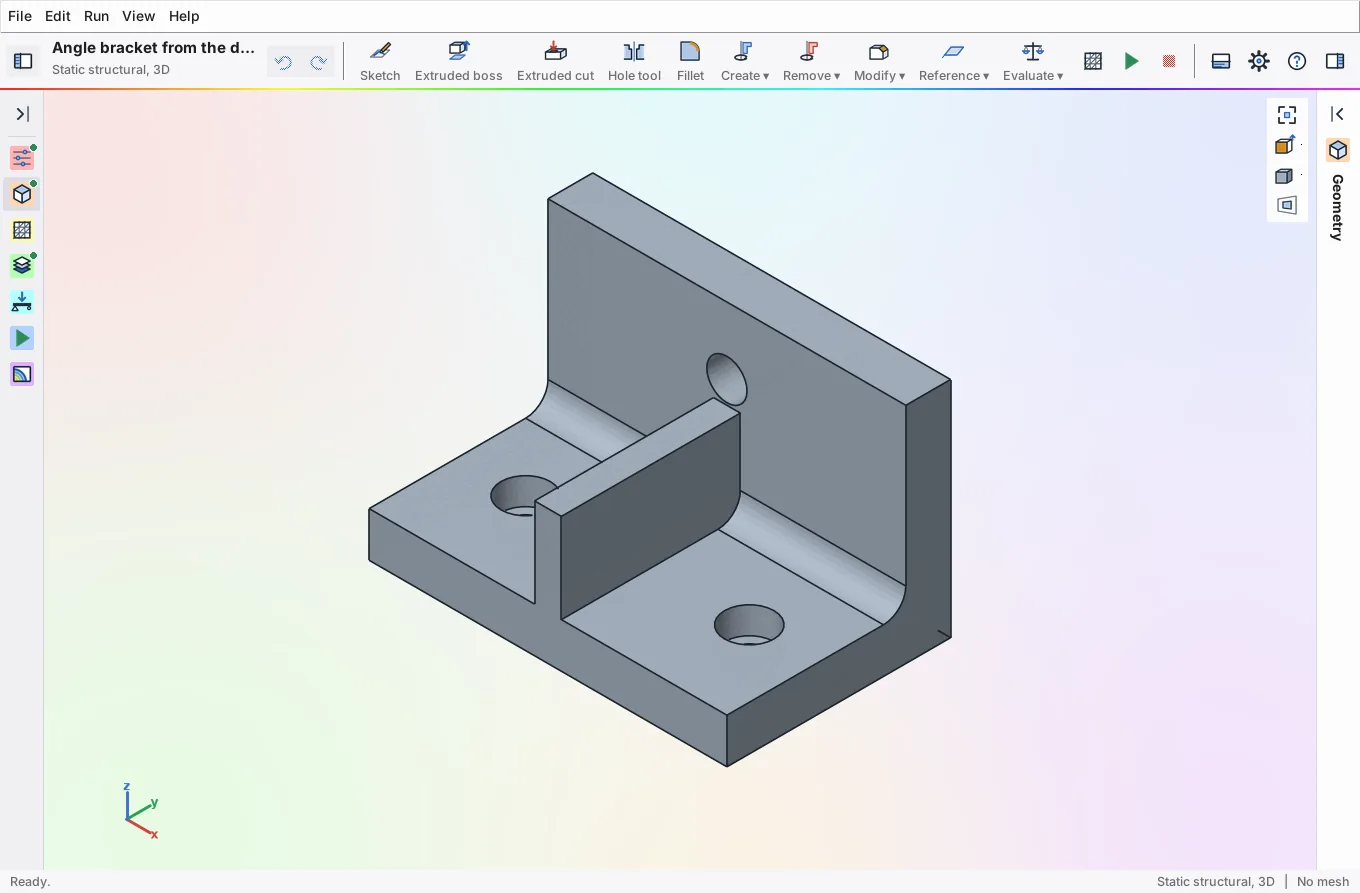
Design workspace (new in 0.8). 3D parts are modelled in a workspace laid out like the
feature-based CAD programs engineers already know: a Model / Drawing switch and the
feature tree in the navigator on the left; the commands in the toolbar, the common ones as
labelled buttons and the rest in drop-down menus (Create, Remove, Modify, Reference,
Evaluate), with the sketch tools taking their place while a sketch is open; a property panel
in the inspector on the right while a feature is being set up (green tick to keep it, red
cross to cancel); a column of view buttons at the right-hand edge of the view; and a shaded
view with its edges drawn. The names and the artwork are OxiPhys's own (see the clean-room policy, LEGAL.md).
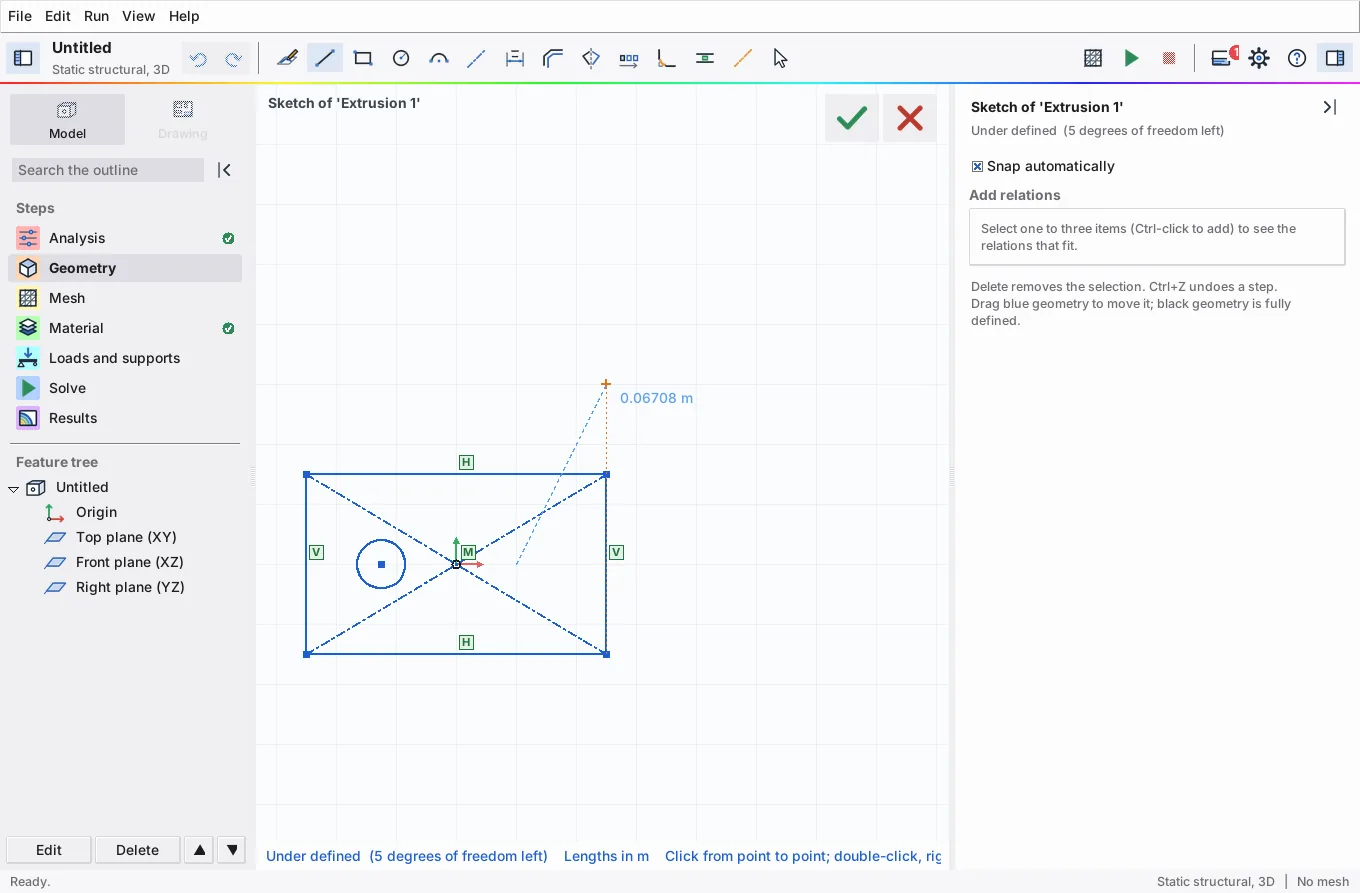
- Parametric sketcher. Line, centreline, rectangle, circle, arc, slot, polygon, spline and point; sketch fillet and chamfer, trim, offset, mirror, project edges of the model, and construction geometry. Relations are inferred as you draw: a click near a point joins the new geometry to it, a click on a line or circle puts the new point on it, and a line drawn nearly level or upright becomes horizontal or vertical. Relations: coincident, horizontal, vertical, parallel, perpendicular, collinear, equal, tangent, concentric, midpoint, symmetric and fix; the panel offers only those that fit the selection. The Dimension tool picks the kind of dimension from what you click (a length, the distance between two items, an angle, a radius or a diameter) and asks for its value. The solver (damped Gauss-Newton, starting from the drawing so that geometry moves as little as possible) keeps every relation and dimension while you drag. Geometry is blue while it can still move, black when it is fully defined and red where relations or dimensions contradict each other; the status line gives the degrees of freedom left, and a dimension that would over-define the sketch is kept as a driven (reference) one. Ctrl+Z and Ctrl+Y undo and redo sketch steps.
- Features. Extruded boss and cut (blind, mid-plane or through all, with an optional draft angle); revolved boss and cut; swept boss and cut (a closed profile along an open or closed path); lofted boss and cut (two or more sections, ruled or smooth); rib (a wall of given thickness along an open sketch line); shell (walls of given thickness, the faces you click left open); fillet and chamfer of edges clicked in the view; linear and circular patterns; mirror.
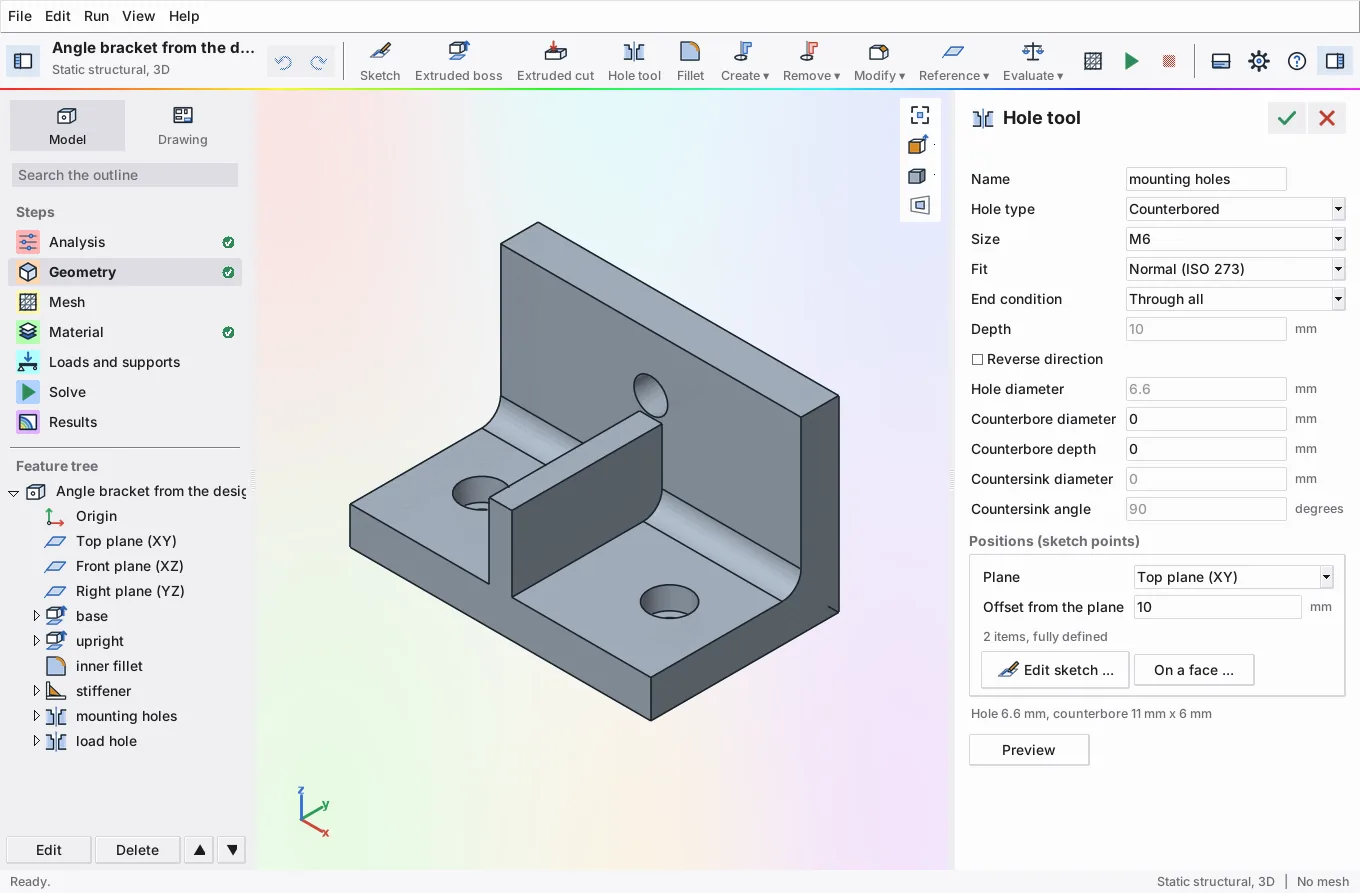
- Hole tool. Drilled, counterbored, countersunk and tapped holes at the points of a sketch, M3 to M20, with close, normal or loose clearance fits to ISO 273, counterbores for ISO 4762 socket head cap screws, 90 degree countersinks for ISO 10642 screws, and tapping drills for coarse threads; blind or through all; custom sizes too.
- Reference geometry. Planes offset from a plane, at an angle to it or through three points, and axes through two points. "On a face ..." in any sketch makes a plane on a flat face you click, so a boss can be sketched straight onto the part.
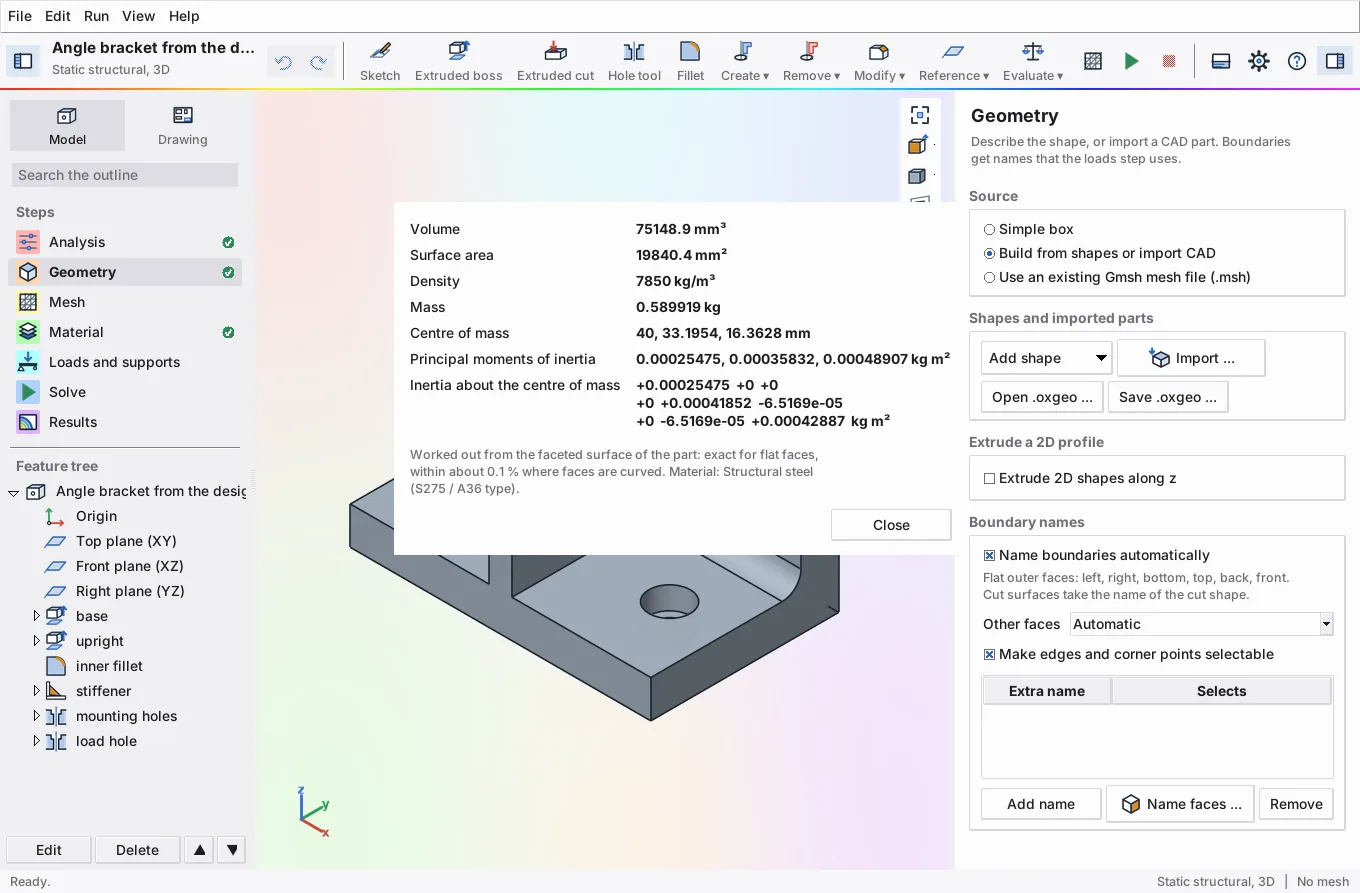
- Evaluate. Mass properties from the faceted surface of the part and the material's density: volume, surface area, mass, centre of mass, inertia about the centre of mass and the principal moments. Rebuild (Ctrl+B) builds the part again.
- Drawing. See below.
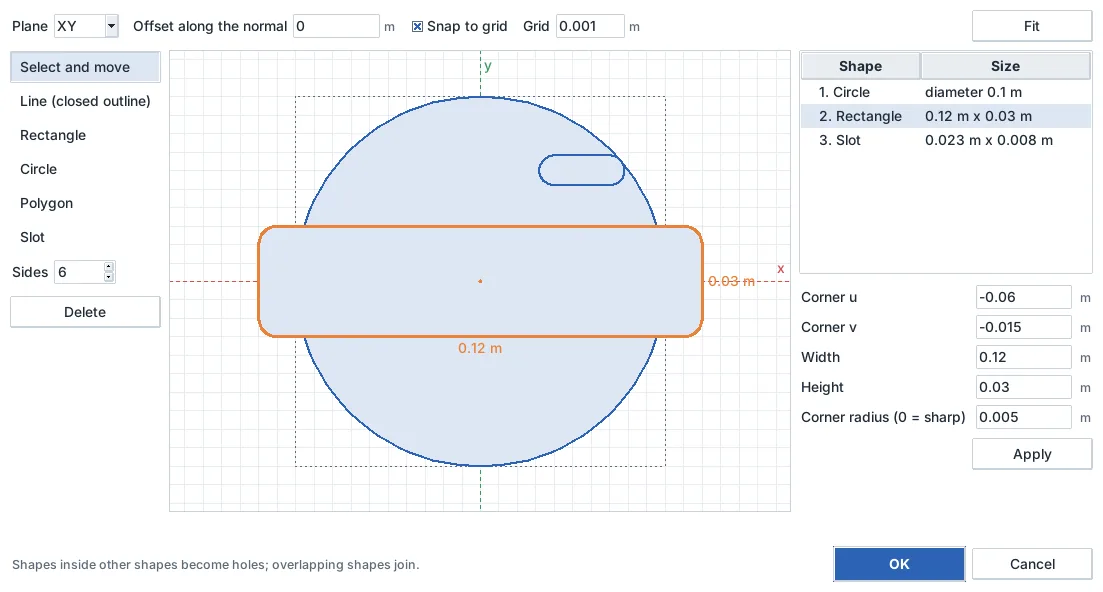
Earlier sketch features (0.7) remain: 2D models keep the 0.7 sketcher dialog (rectangle, circle, polygon, slot and outline on a grid), and older projects open unchanged; their closed shapes are converted to lines and tangent arcs when first edited in the new sketcher, without changing the shape. Every cut copy gets its own boundary name (hole, holes_1, holes_2, ...), so loads and mesh refinement can find it.
Engineering drawings (new in 0.8). The Drawing switch lays the part out on an ISO sheet (A4 to A0, first or third angle projection, and a scale from the ISO 5455 series, 50:1 to 1:1000, chosen to fit or picked by you).
- Front, top, right, back, left, bottom and isometric views, each at the sheet scale or its own. Visible edges and the silhouettes of curved faces are drawn wide and continuous, hidden edges dashed and centre lines chain-dotted (ISO 128 line types).
- Section views: click where a view should be cut (Shift for a horizontal cut); the section is drawn beside it with hatching and labelled A-A, B-B, ... The front view can be drawn as a half section, as for parts turned on a lathe: the quarter above the axis nearest the viewer is cut away and hatched.
- Overall sizes and hole diameters are added for you (with "4x" for repeated holes), or added by hand with the Dimension tool. Scripts can also add leader notes, toleranced dimensions (for example +0.30 / -0.00), thin lines, centre lines and ruled tables (thread table, parts list, revision history).
- A title block in the manner of ISO 7200, a notes block, and the ISO 5456-2 projection symbol.
- Export to PDF, SVG, PNG or DXF (AutoCAD R12, millimetres, one layer per line type).
Boundary names, which the loads step refers to, come from four sources:
- Automatic names for flat outer faces: left, right, bottom, top, back and front. Parts drawn in the design workspace stand on z (bottom and top at the lowest and highest z, front at -y, back at +y, as in the drawing's views; 0.8.5); shapes, imported parts and extruded 2D profiles keep y up (back at the lowest z). Projects saved before 0.8.5 keep their names.
- The name of each cut shape for the surface it leaves behind.
- Your own selections by plane (for example x = 0) or by box.
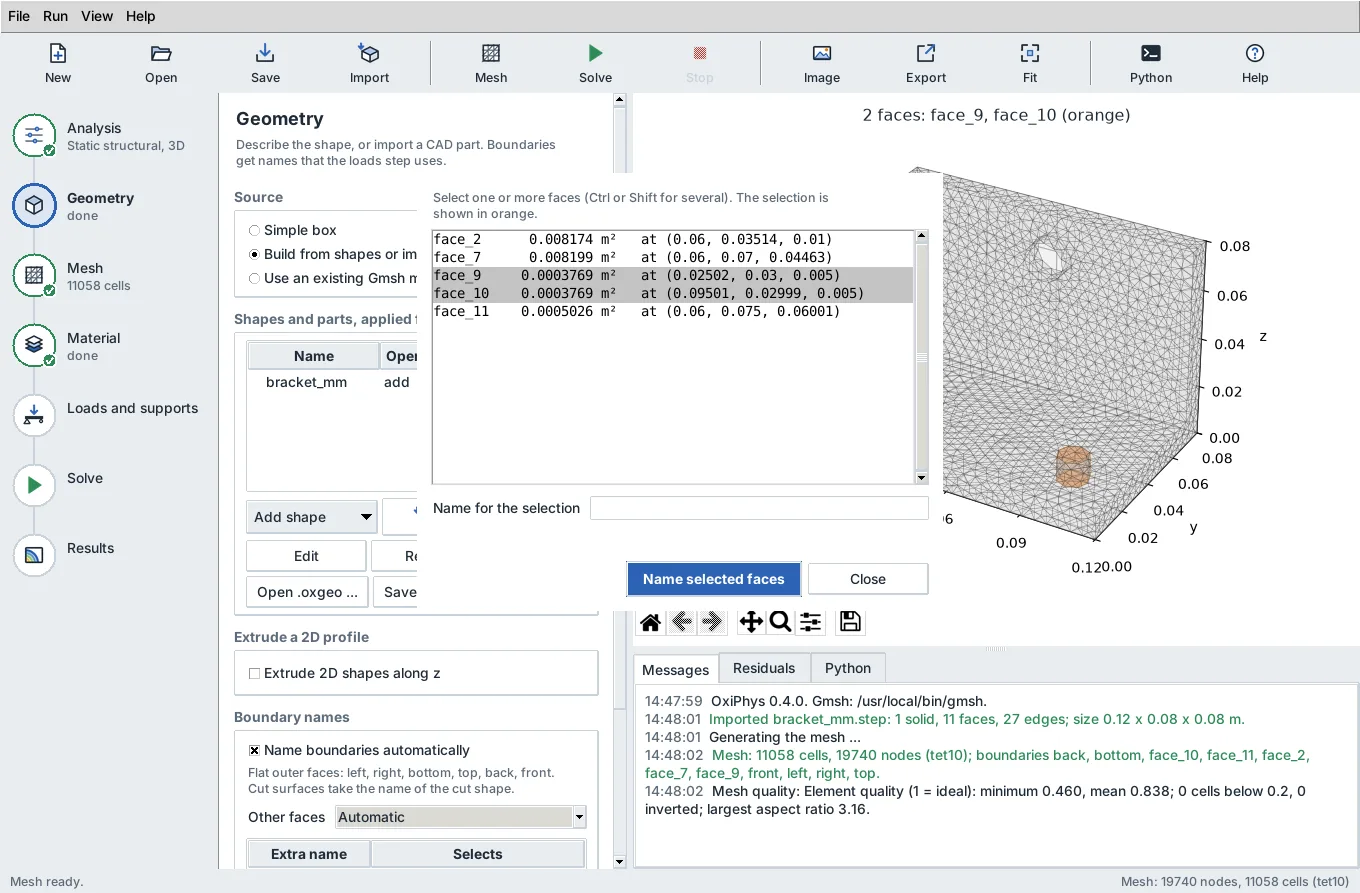
- Faces picked by number from a list, each highlighted as you select it.
Imported parts keep every other face as its own set (face_1, face_2, ...). Naming faces from the list renames the existing mesh, so there is no need to mesh again. Faces can also be picked by clicking them in the view.
Edges and corner points (new in 0.6) of built and imported geometry become sets too: edge_1, edge_2, ... and point_1, point_2, ... (Geometry step, "Make edges and corner points selectable", on by default). They are used by local mesh controls and by supports and point forces.
2. Meshing
| Method | 2D elements | 3D elements | When to use it |
|---|---|---|---|
| Free | Tri3, Tri6; Quad4, Quad9 by recombination and subdivision; quad-dominant (CFD) | Tet4, Tet10; Hex8 by splitting tetrahedra | Any shape |
| Mapped | Structured Quad4, Quad9 or Tri3 on four-sided faces | Structured Hex8 in six-sided blocks | Blocks and four-sided regions. Other regions are meshed freely and every cell is subdivided, so the mesh keeps one element type; you are told when this happens |
| Swept | Hex8 layers (from a quadrilateral profile mesh) or Prism6 layers (CFD) | Extruded profiles |
- Mapped hexahedra on extruded parts (new in 0.8.7). In the app, Mapped with Hexahedra on a part made by one extrusion (blind or from the middle, no draft), less any cut extrusions that go right through it in the same direction, is meshed by sweeping: the profile, less the holes, is meshed with quadrilaterals (Blossom recombination) that follow its circles, and repeated in layers through the depth, the depth over the element size and two at least. Each face of the profile is given an even number of edges round it, which an all-quadrilateral mesh needs; if the profile still cannot be meshed with quadrilaterals only, a second try uses 16 elements per circle, and then the mapped method of before is used. Faces named by number and local mesh controls keep the method of before, since they refer to the faces of the solid. Disc of 300 mm, 100 mm hole through it, 100 mm deep, 20 mm elements: quality mean 0.51, minimum 0.14 (17,296 cells) before, mean 0.94, minimum 0.71 (1,040 cells) now. Annulus 300 mm by 120 mm: largest displacement under a 1 MPa pressure 5.568e-4 mm (swept hex8, 20 mm) and 5.569e-4 mm (10 mm), against 5.573e-4 mm with quadratic tetrahedra (10 mm, 27,453 cells).
-
Folded cells (new in 0.8.7). After meshing for a structural or thermal analysis, cells of quality zero or below are counted. If there are any, the part is meshed again, with free hexahedra (for a mapped hexahedral mesh) and then with quadratic tetrahedra, and the first mesh without folded cells is kept, with a note in the messages. A mesh that still has folded cells is refused at Solve with advice, and a solver stop on a non-positive Jacobian is reported in plain words.
-
Algorithms.
- 2D: Frontal-Delaunay, Delaunay, MeshAdapt, Frontal-Delaunay for quads, packing of parallelograms.
- 3D: Delaunay, Frontal, HXT (parallel, fastest for large meshes).
- Sizing.
- Global element size and smallest size.
- Elements per circle on curved edges and faces.
- Refinement near named boundaries, with a growth distance.
- Refinement inside boxes.
- Thin quadrilateral boundary layers on 2D CFD walls.
- Local mesh controls (new in 0.6).
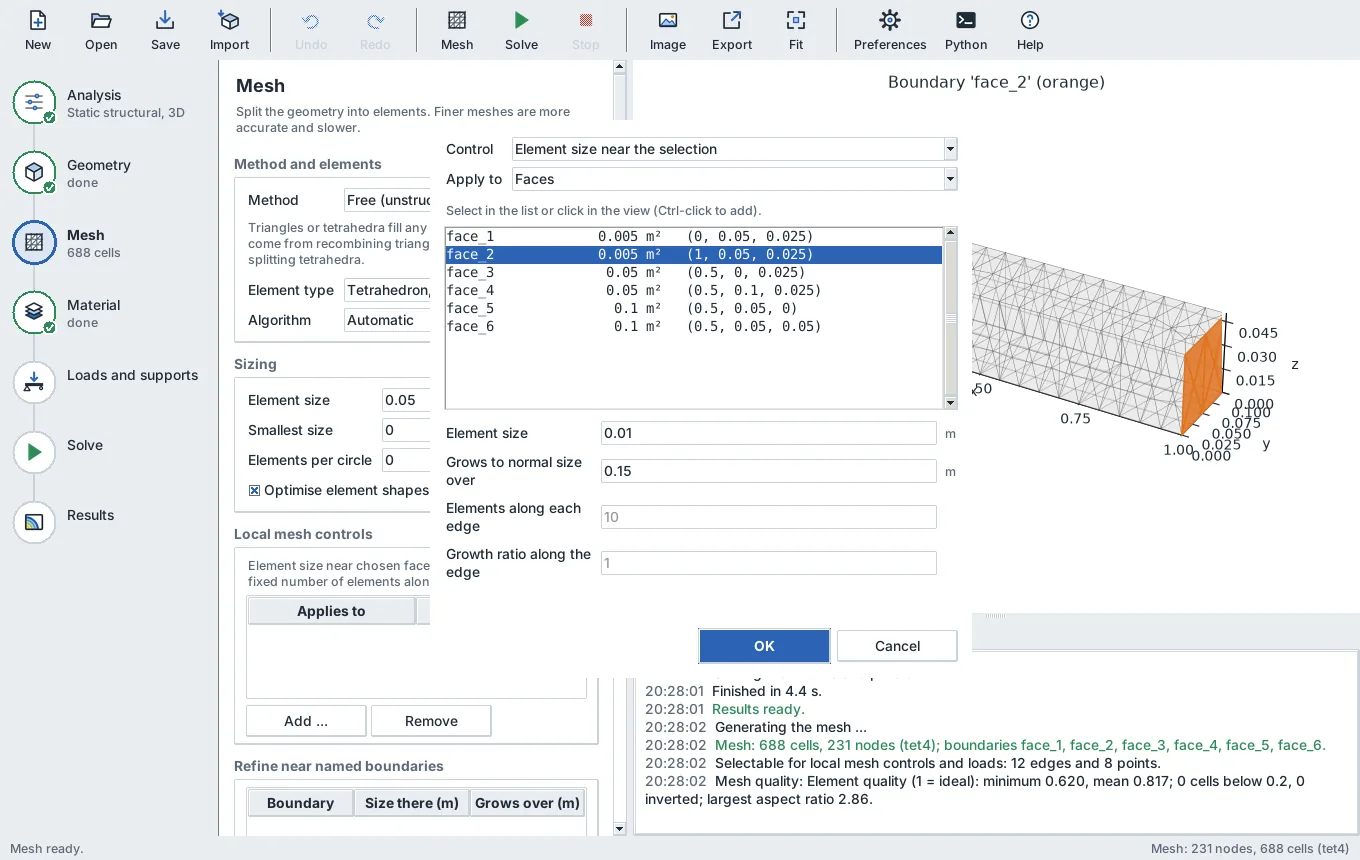
- Element size near chosen faces, edges or points, growing back to the global size over a distance you give (by default three times the local size).
- A fixed number of elements along chosen edges, evenly spaced or graded by a growth ratio.
- The entities are picked from a list or by clicking them in the view; the selection is shown in orange.
- Optimisation. Netgen optimisation of tetrahedra and smoothing in 2D.
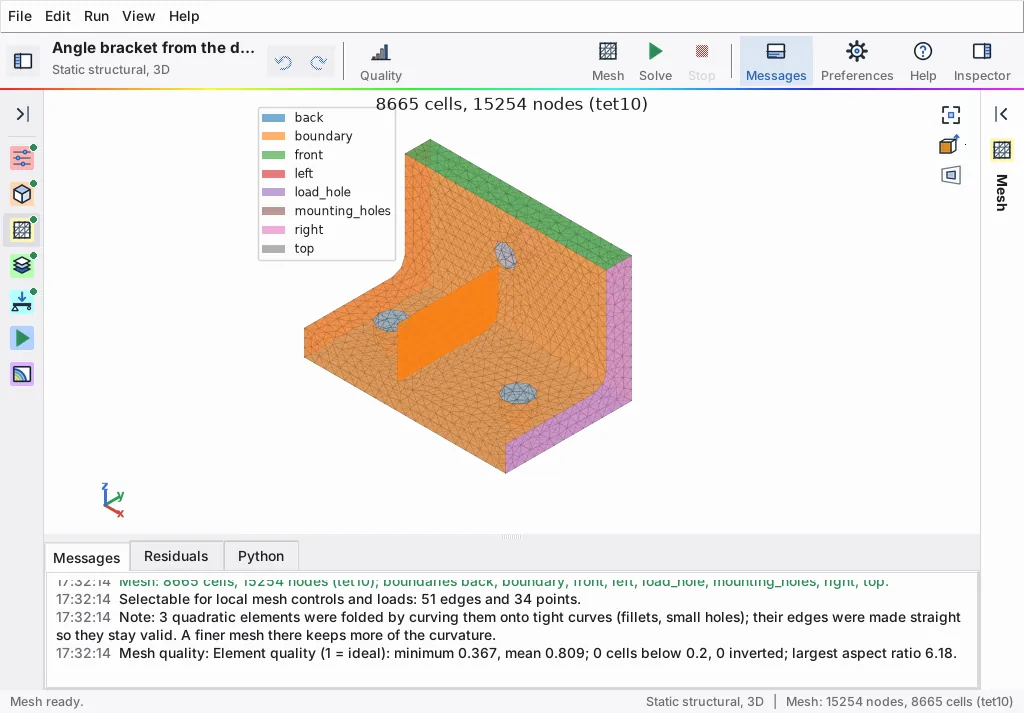
- Quality report after every mesh.
- Shape quality of every cell: 1 is ideal, 0 or less is inverted. The measure is the mean ratio for triangles and tetrahedra, and the scaled Jacobian for quadrilaterals, hexahedra and prisms.
- Cells below 0.2, inverted cells, and the largest aspect ratio.
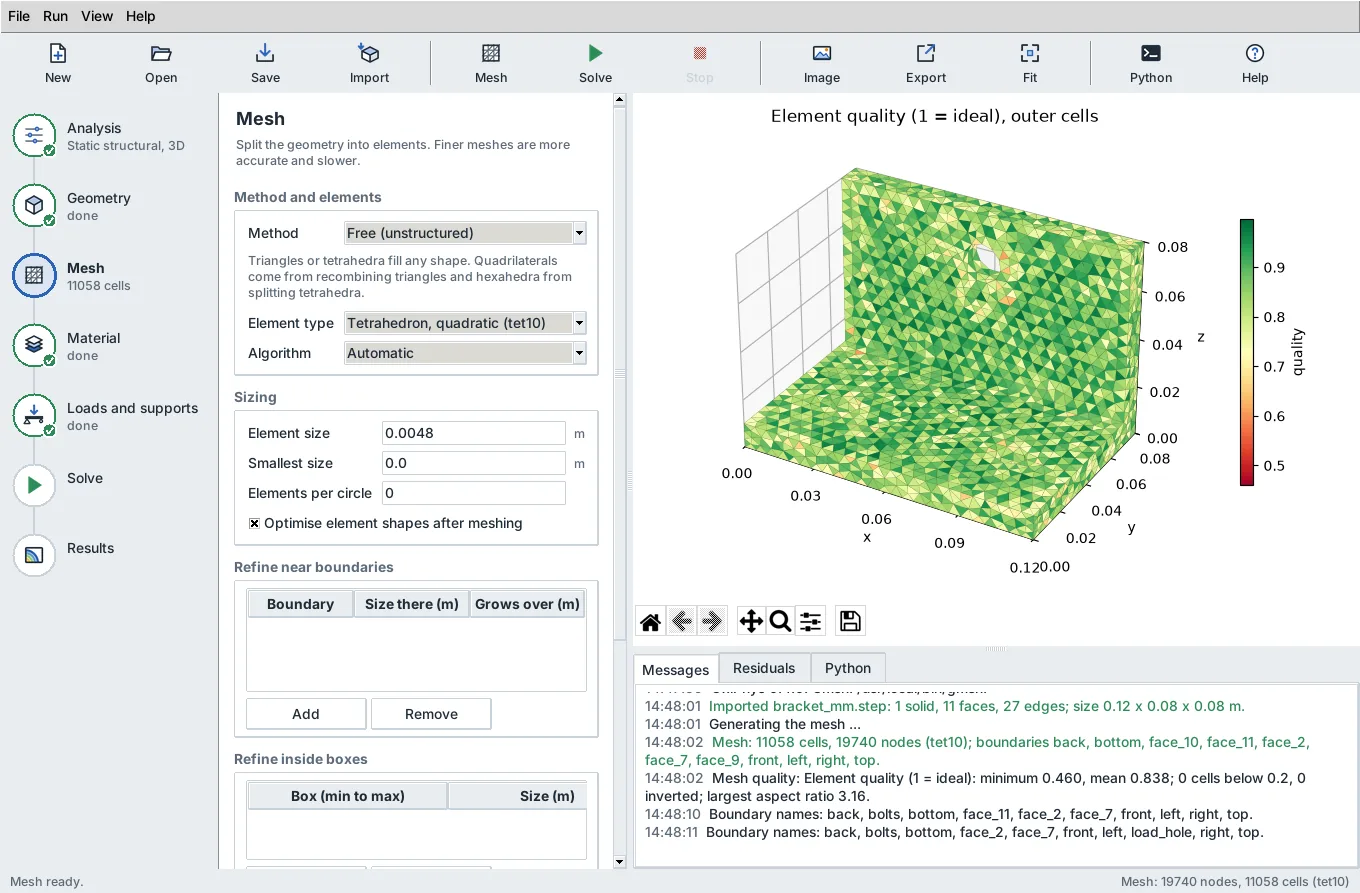
- A colour plot of the quality.
- Export. Gmsh .msh, or VTK with the quality per cell for ParaView.
Meshing uses Gmsh as a separate program; mapped meshing also needs the gmsh Python package.
Both come from pip install gmsh.
3. Analyses
| Analysis | App | Python | Elements |
|---|---|---|---|
| Linear static (plane stress, plane strain, 3D) | yes | Elasticity.solve |
All solid elements |
| Modal (natural frequencies and mode shapes) | yes | Elasticity.modal |
All solid elements |
| Linear buckling | yes | Elasticity.buckling |
All solid elements |
| Transient dynamics (Newmark, Rayleigh damping) | no | Elasticity.transient |
All solid elements |
| Elastoplasticity (von Mises, isotropic hardening) | yes (new in 0.7) | Elasticity.plastic |
3D and plane strain |
| Large deflection (Total Lagrangian) | no | Elasticity.large_deformation |
All solid elements |
| Frictionless contact with a rigid plane | no | Elasticity.contact |
All solid elements |
| Steady heat conduction | yes | Conduction |
All solid elements |
| Incompressible CFD, steady or transient, laminar or k-omega SST, energy and buoyancy | yes | Flow |
Any mix of triangles, quadrilaterals, tetrahedra, hexahedra, prisms and pyramids |
Loads and conditions in the app:
- Structural: fixed support, prescribed displacement in chosen directions, total force, traction, normal pressure, gravity. Supports, prescribed displacements and forces can also go on edges and corner points (new in 0.6); a force on an edge is shared equally by its nodes.
- Thermal: fixed temperature, heat flux, convection.
- CFD: no-slip walls (moving and heated walls too), velocity inlets (uniform or parabolic), pressure outlets, symmetry planes, gravity for buoyancy.
- Elastoplastic static runs (new in 0.7): the load is applied in steps you choose, with Newton iterations in each; the yield stress and hardening modulus come from the material.
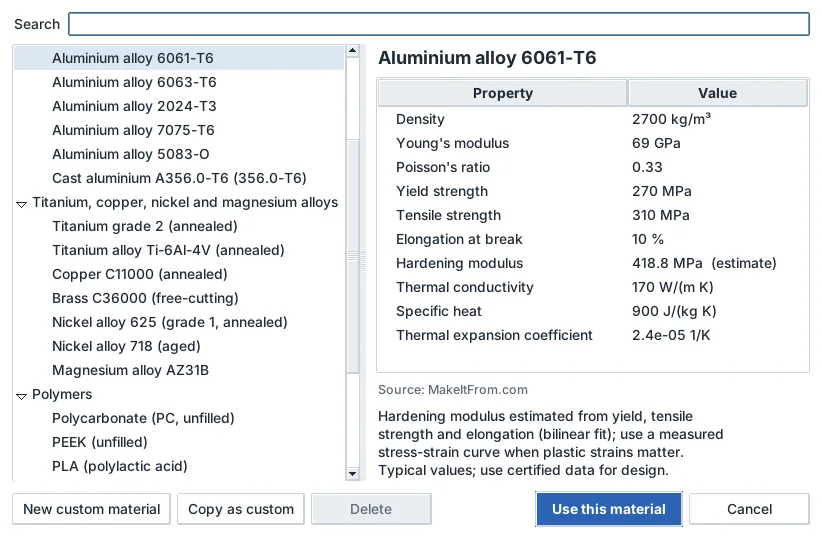
Materials library (new in 0.7). 27 solids and 18 fluids, each with its source, and your own custom materials (kept between sessions and shared by every project):
| Group | Materials |
|---|---|
| Steels | Structural steel (S275 / A36 type), AISI 1020, AISI 4140, stainless 304 and 316 |
| Aluminium | 6061-T6, 6063-T6, 2024-T3, 7075-T6, 5083-O, cast A356.0-T6 |
| Other metals | Titanium grade 2 and Ti-6Al-4V, copper C11000, brass C36000, nickel alloys 625 and 718, magnesium AZ31B |
| Polymers | PC, PEEK, PLA, PA66, HDPE, PTFE |
| Ceramics, glass, concrete | Alumina 99.5 %, soda-lime glass, normal-weight concrete |
| Water | Water at 7, 27 (300 K), 47 and 87 degrees Celsius, sea water |
| Other liquids | Engine oil, ethylene glycol, glycerin |
| Gases | Air at 250, 300, 350 and 400 K, nitrogen, oxygen, hydrogen, carbon dioxide, methane, steam |
Solids carry density, Young's modulus, Poisson's ratio, yield and tensile strength, elongation, a hardening modulus, thermal conductivity, specific heat and expansion coefficient. Fluids carry density, viscosity, conductivity, specific heat and expansion coefficient at a stated temperature. Values that were estimated rather than looked up (most hardening moduli, from a bilinear fit through yield and tensile strength) are marked as estimates. Search by name; a material can be copied as a custom one and edited.
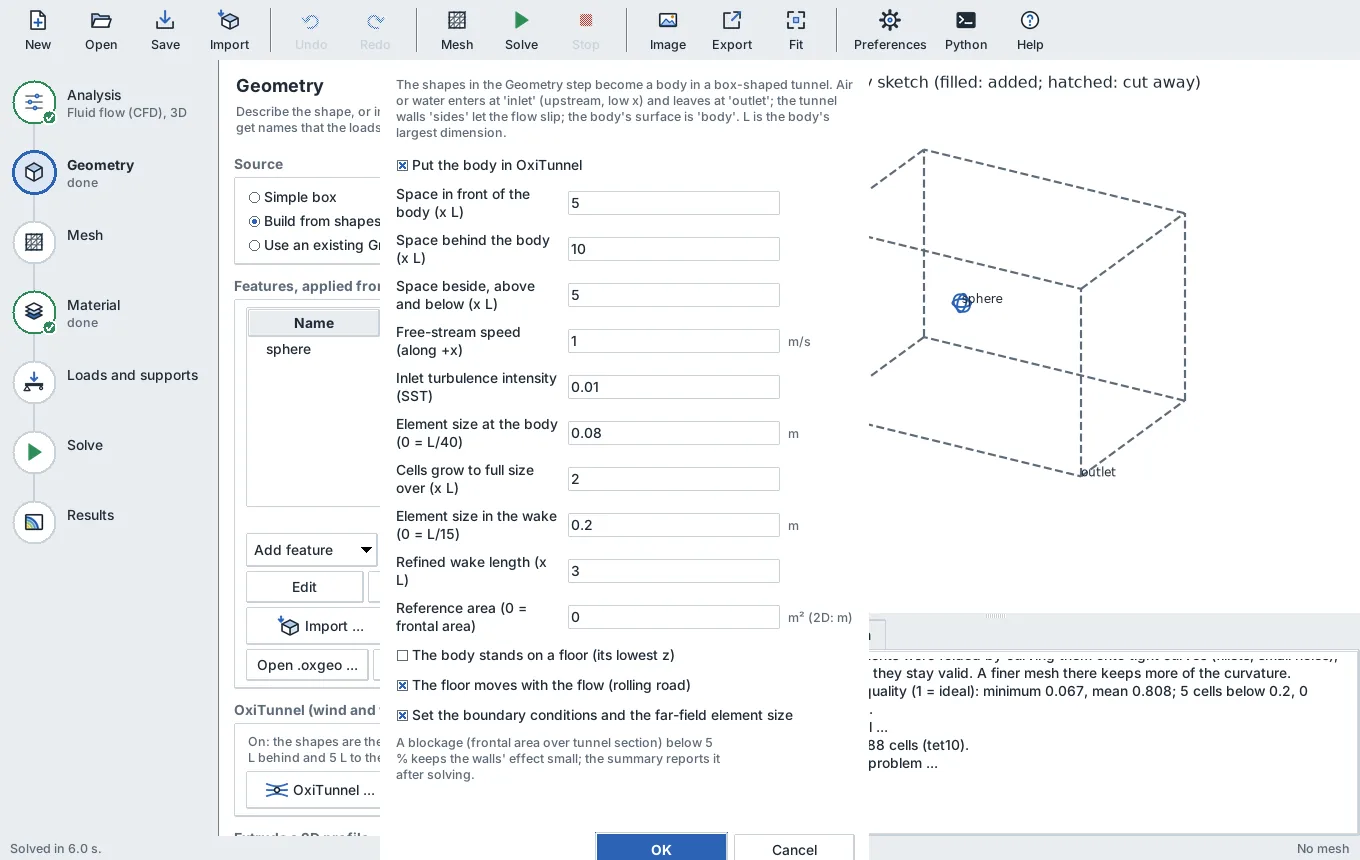
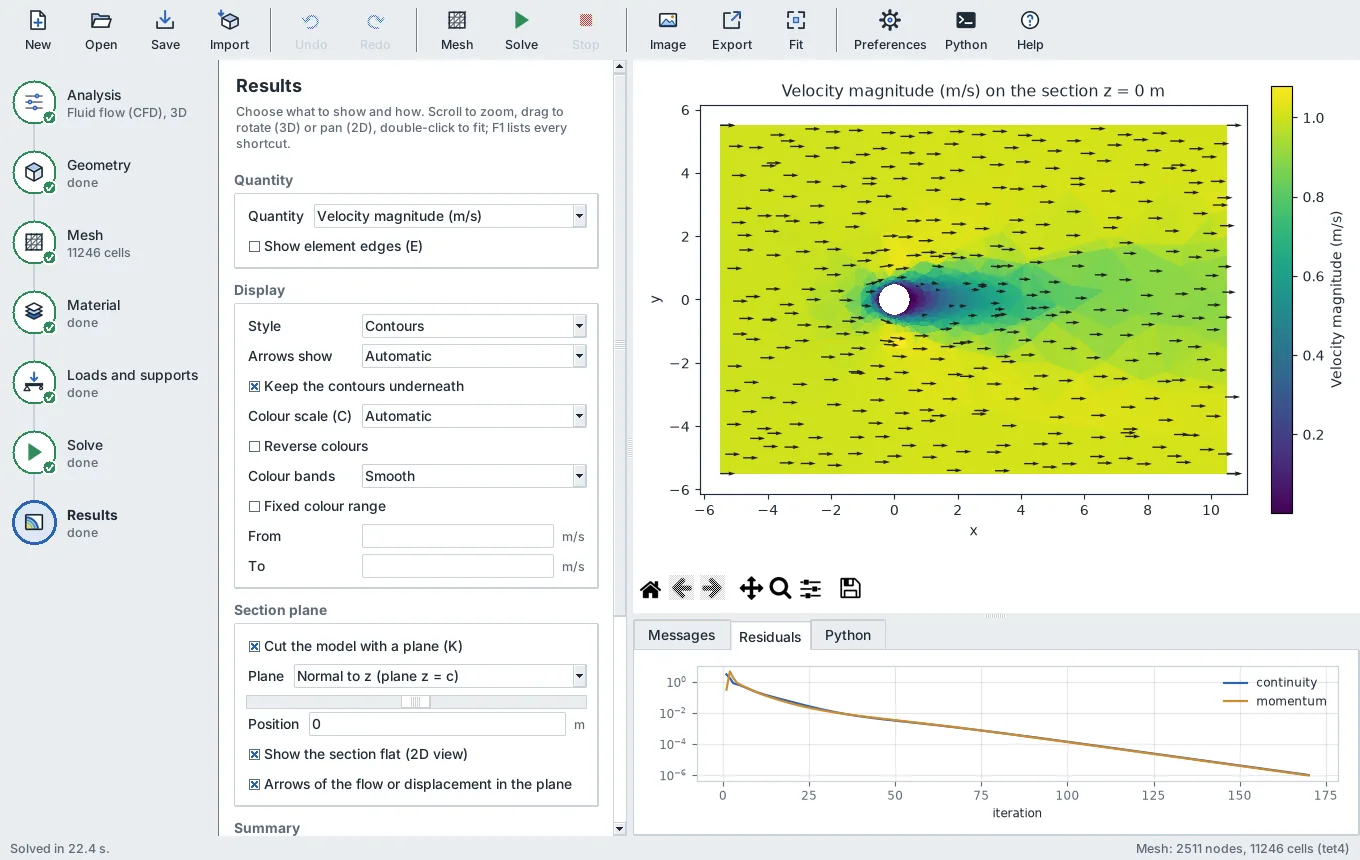
OxiTunnel (new in 0.7). A virtual wind or water tunnel for CFD. The shapes of the Geometry step become the body; OxiTunnel puts it in a box sized in body lengths L (in front, behind, to the sides), optionally standing on a floor that can move with the flow (rolling road). It names the boundaries inlet, outlet, sides, floor and body, sets the conditions (inlet speed and turbulence intensity, outlet pressure 0, slipping side walls, walls on the floor and body) and refines the mesh at the body and in its wake. After solving it reports drag and lift (and side force in 3D) coefficients on the frontal area, the Reynolds number, the blockage (with a warning above 5 %) and the pressure coefficient Cp as a field.
4. Results you get
- Static.
- Fields: displacement (total and components), von Mises stress, stress components, principal stresses; for elastoplastic runs, von Mises stress and equivalent plastic strain per cell.
- Values: maximum displacement and stress, reactions at every support.
- Modal and buckling. Frequencies or load factors, and mode shapes.
- Thermal.
- Field: temperature.
- Values: heat flowing in through every fixed-temperature boundary (0.5), heat added through flux boundaries, heat lost to convection.
- CFD.
- Fields: velocity (magnitude and components), pressure, temperature, turbulence fields.
- Values: mass flow through every boundary, fluid force on every wall, wall heat flow, live residual plots.
- Sections (new in 0.7). Any 3D result can be cut by a plane normal to x, y or z, moved with a slider, and shown in place on the model or flat as a 2D picture, with arrows of velocity or displacement in the plane.
- Outputs. VTK for ParaView (always in SI), CSV tables in the display units, images; Python gives NumPy arrays.
How results are shown (new in 0.6):
| Style | What it shows |
|---|---|
| Contours | Smooth colours, or 5 to 20 colour bands |
| Dots | The value at evenly spread points, coloured by the scale |
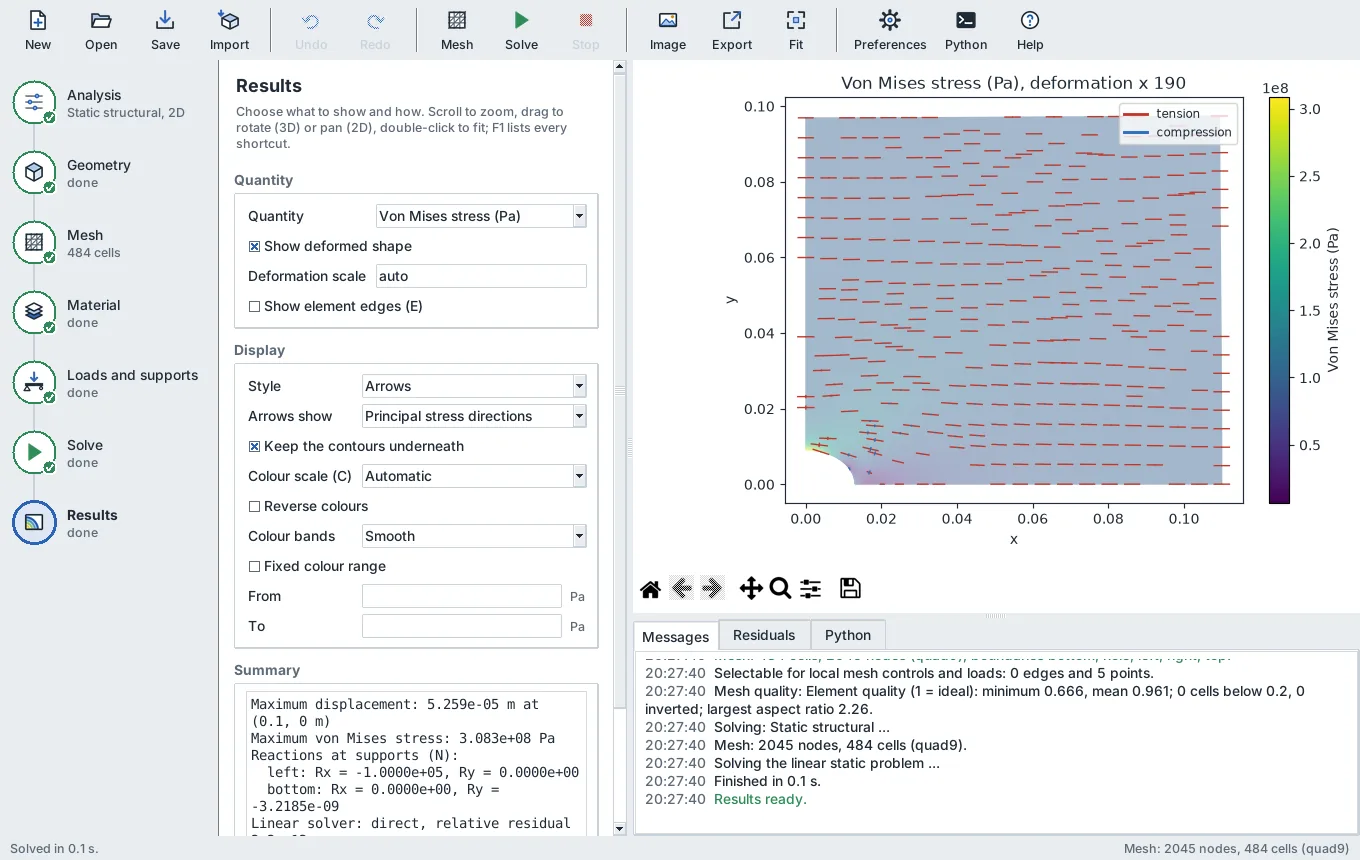
| Arrows | Displacement, velocity, or principal stress directions (largest and smallest principal stress, red for tension and blue for compression, length in proportion to the stress) |
| Streamlines | 2D flow, coloured by speed |
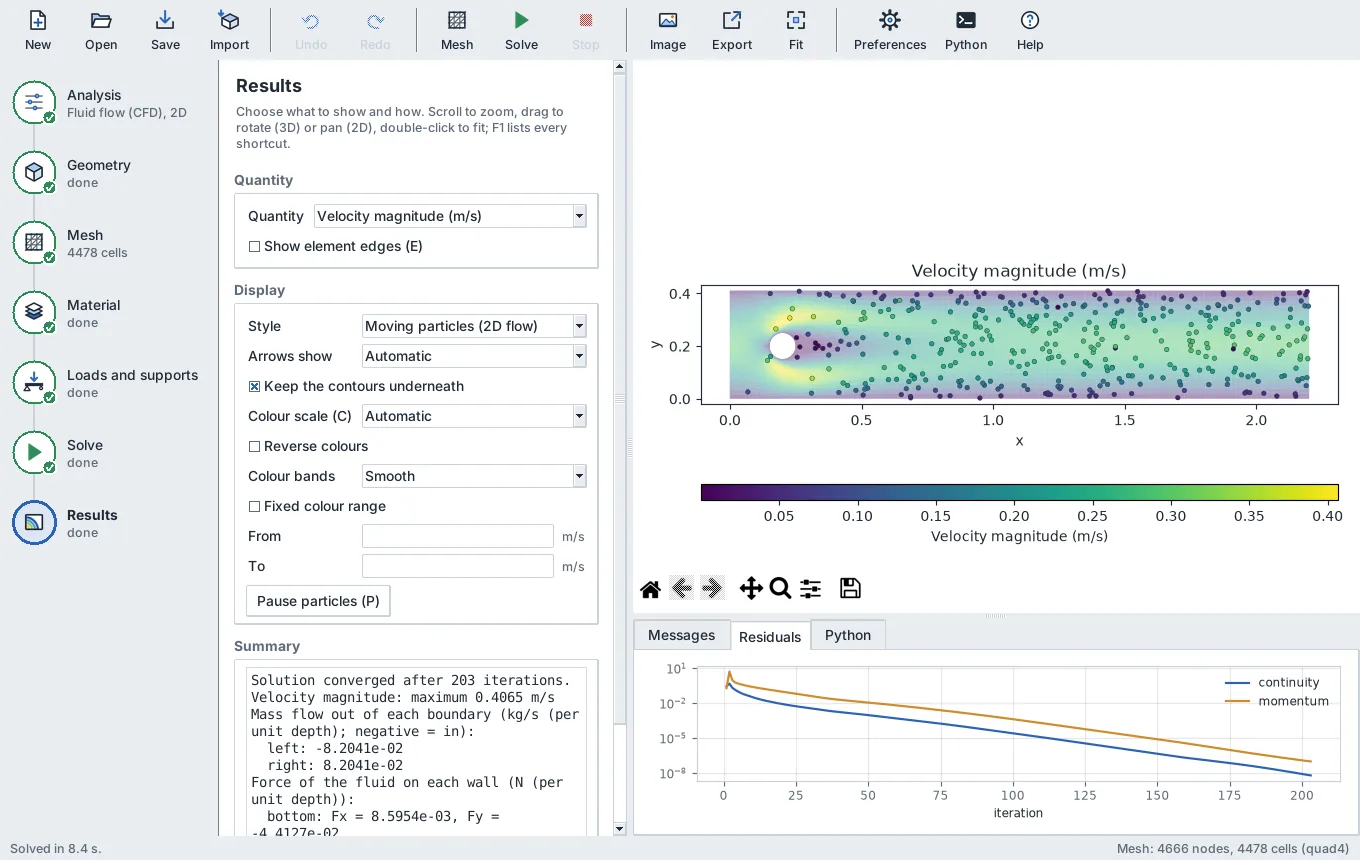
| Moving particles | 2D flow, particles carried by the velocity field (second-order steps), with pause and play |
- Colour scales: viridis, plasma, inferno, magma, cividis, turbo, rainbow (jet), coolwarm, red-blue, spectral and greys, or automatic (a diverging scale for values of both signs). Reverse, bands and a fixed range (in display units) are available for each.
- Backgrounds: the theme colour, white, light, mid or dark grey, black, a blue-to-white gradient, or any colour you choose.
- Under arrows, dots and particles the contours are washed towards the background, so the symbols stand out, while the colour bar keeps the true colours.
5. How accurate it is
| Case | Reference | OxiPhys result |
|---|---|---|
| 2D cantilever | Exact elasticity solution | Optimal convergence for every element; Quad4 with incompatible modes -1.0 % on a 4 x 1 mesh |
| Plate with a hole (Gmsh meshes) | Kirsch | Stress concentration 3.0018 (Quad9), 2.9955 (Tri6) against 3 |
| Modal, slender cantilever | Timoshenko-corrected beam theory | Within 0.11 % for the first four bending modes |
| Linear buckling | Euler with Engesser shear correction | Within 0.01 % |
| Large deflection | Exact elastica | Within 0.02 % up to P L^2 / EI = 10 |
| Hertz contact | Johnson (1985) | Contact half-width +0.1 %, peak pressure -0.24 % |
| Cylinder in a channel, Re = 20 | DFG benchmark | Drag coefficient +0.05 % |
| Natural convection, Ra = 1e3 to 1e6 | de Vahl Davis (1983) | Nusselt number within 0.4 % |
| Turbulent channel, SST | DNS (Moser et al., 1999) | Bulk velocity within 0.8 % at first-cell y+ = 0.3 |
| STEP cantilever (0.5) | Timoshenko beam theory | -0.19 % (Tet10, 4404 cells); converges to -0.16 %, the 3D clamping effect; reaction exact |
| STEP plate with a hole, 2D (0.5) | The same plate built from shapes | Identical mesh and stress concentration (3.0826) |
| STL rod, conduction (0.5) | k A dT / L for the 24-sided section | STL triangles kept: exact to 3e-8. Remeshed: section area -1.79 %, -0.46 %, -0.11 % at 4, 2 and 1 mm (second order); heat flow exact on the meshed shape |
| Mapped meshes (0.5) | Ideal cell shapes | Rectangles and boxes meshed with quality 1.000 everywhere |
| Swept prisms, CFD (0.5) | Mass conservation | Outlet mass flow equals the inlet to 1e-9 |
| Principal stress directions (0.6) | Mohr's circle (2D), eigenvalues (3D) | Exact to 1e-9 | | Local size on a face (0.6) | Requested size 0.01 m at the face of a 1 m bar meshed at 0.05 m | Ten times as many cells per unit length within 0.1 m of the face as in the far half | | Divisions along an edge (0.6) | Requested count | Exactly 40 elements (41 nodes) along the edge | | Forces on an edge and a corner point (0.6) | Equilibrium | The clamp reaction equals the applied forces to 1e-6 N | | Unit conversion (0.6) | NIST SP 811 factors | 200 GPa = 29 008 ksi; 100 degrees Celsius = 212 degrees Fahrenheit | | Sketch features (0.7) | Closed-form volumes; Pappus for the fillet ring of the flange | Within 2e-6 (flange -3.7e-7); mirrored bodies 2e-4 (an OpenCASCADE mass-integration error; the meshed volumes agree to 1e-7) | | Elastoplastic bar in the app (0.7) | Exact bilinear uniaxial law | 252.0755 MPa and plastic strain 0.0027396 in every cell, to 1e-9 | | OxiTunnel cylinder, Re = 20 (0.7) | 2.045 (Dennis and Chang, 1970) | C_D 2.109 (+3.1 %, 2.4 % blockage); 2.086 (+2.0 %) with a finer far field | | OxiTunnel sphere, Re = 20 (0.7) | 2.735 (Clift, Grace and Weber, 1978) | C_D 2.699 (-1.3 %); 2.740 (+0.18 %) on a finer mesh | | Heat sink, eight fins by a pattern (0.7) | Energy balance | 48 W in, 48 W out to 1e-6 W | | Section planes (0.7) | Exact area, linear field | Exact to 1e-12 on Hex8, Tet4 and Tet10 | | Sweep, loft, shell, draft, rib, hole tool (0.8) | Pappus, frustum and prism volumes, ISO hole sizes | Within 2e-6 for every feature, each from the exact OpenCASCADE model | | Sketch solver (0.8) | Exact positions | A dimensioned rectangle lands on its corners to 1e-12; a repeated dimension is reported as over-defining | | Mass properties (0.8) | Exact box; EP-01 by Pappus | Box exact to 1e-12; EP-01 volume -9.1e-5, inertia about the axis -1.9e-4 | | EP-01 turned part (0.8) | Exercise drawing (half section) | Built from one revolved sketch and the hole tool; OpenCASCADE volume equals Pappus to 1e-15 |
Screenshots of the app running some of these cases are in section 8.
6. Working in the app
New in 0.8.8, the drawing sheet:
- Sections placed on screen: with Section view chosen, the cutting line, its arrows and its letter follow the pointer over the front, top and side views (vertical, or horizontal with Shift held), and a click cuts there. The section view is laid out at once; the inspector's list has Flip (the arrows the other way) and Remove for each.
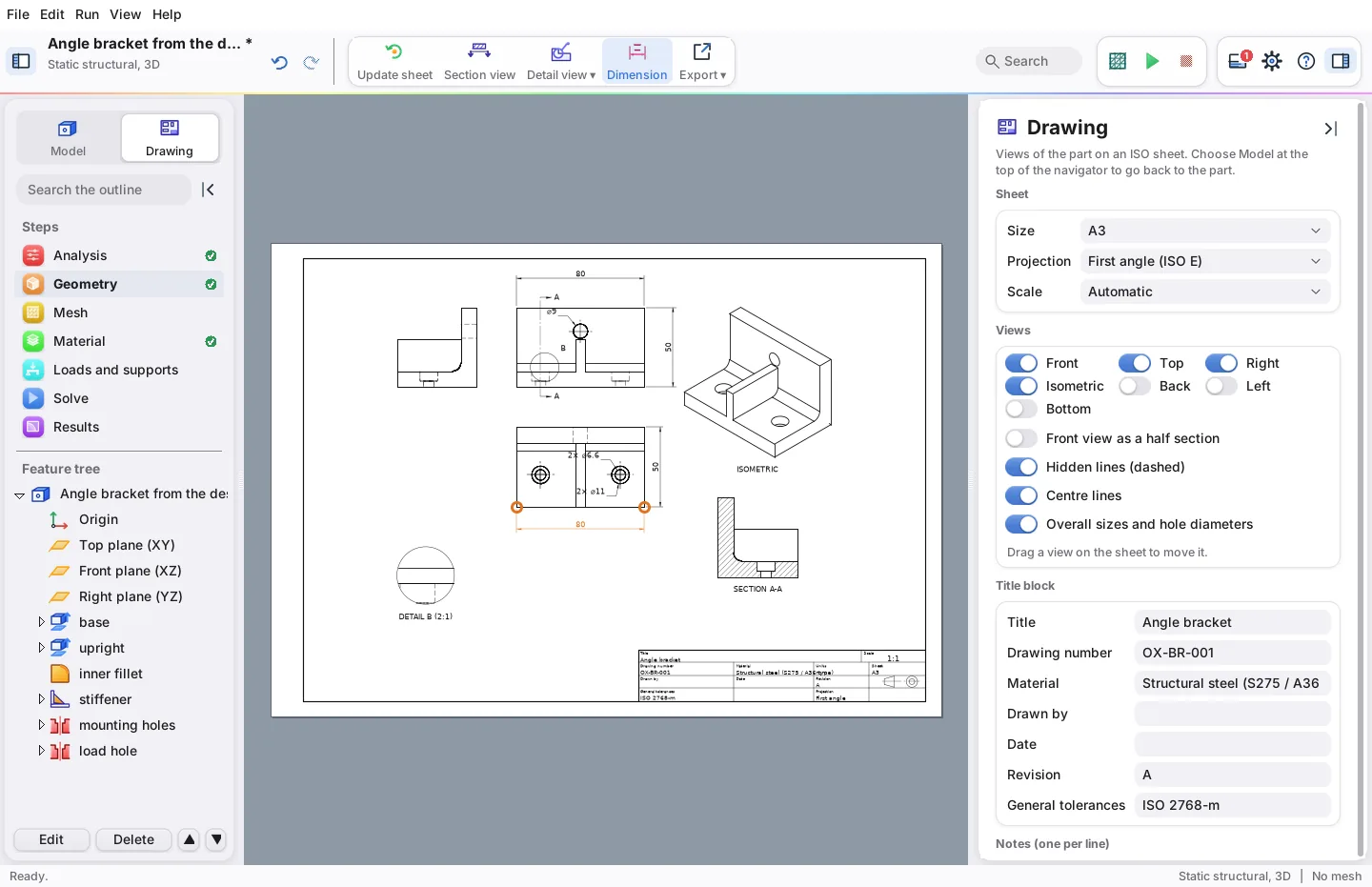
- Dimensions placed on screen: with Dimension chosen, an orange ring marks the corner, end or circle the pointer would snap to (within 4 mm on the sheet, or 8 pixels when zoomed out); after two points the dimension itself is drawn live, horizontal when the pointer is above or below the two points, vertical beside them and aligned otherwise, and the third click puts it there. One circle gives a diameter, or a radius with Shift. Dimensions can be put on section and detail views too.
- Dimensions edited on screen: a click on one of the drawing's own dimensions selects it (orange), dragging moves its line (or turns a diameter's leader, or moves a note), Delete removes it and Esc lets it go. Esc or a right click leaves any tool.
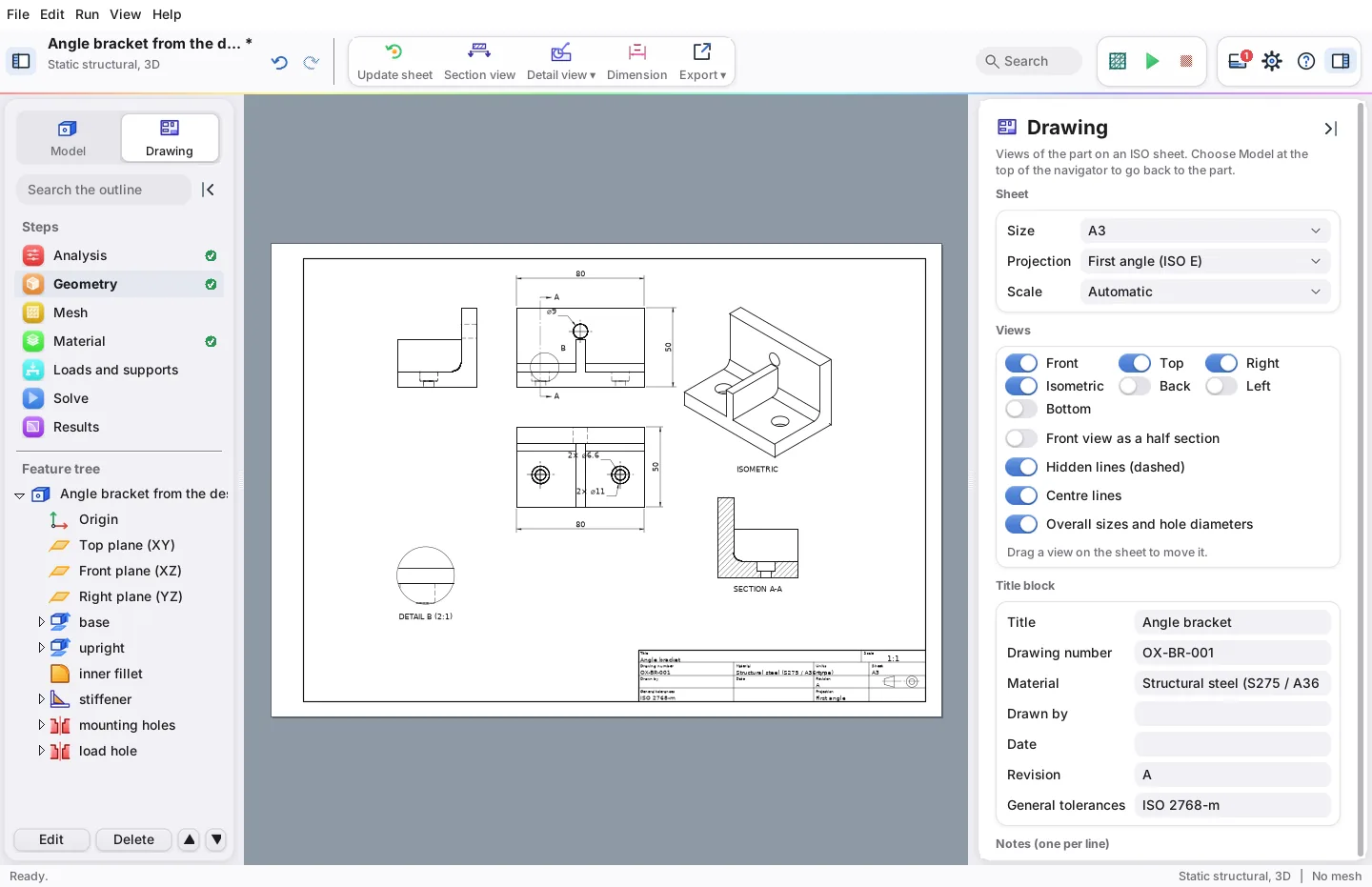
- Detail views (toolbar, Detail view): drag out a circle from its middle, a rectangle (a square with Shift) or draw a freehand outline round part of a view, a section or the isometric view. The region is drawn again larger, its outline drawn on both views and lettered on the first, and labelled "DETAIL B (2:1)". The lines are clipped to the outline exactly (segment by segment against the outline's edges); centre lines, hatching and the points dimensions snap to are kept where their centres lie inside. The enlargement is chosen so that the region comes out about 55 mm across, from 1.5x, 2x, 2.5x, 4x, 5x, 10x and 20x, and can be changed in the inspector; the detail is drawn at the ISO 5455 scale nearest the sheet's scale times that enlargement, so the label always reads an ISO scale. Sections and details share the letters A to Z without I, O and Q (left out, as usual, since they read as 1 and 0).
- Layout: the extra views (isometric, sections, details) now fill the space under the standard views first, then columns to the right, a new column when one would reach the title block. The angle bracket with a section and a detail stays at 1:1 on A3 this way; in a single column it went down to 1:2.
New in 0.8.7:
- Free rotation (trackball): Ctrl and left drag always turns the part freely, in the three button styles. Near the middle of the view the part turns about the screen axis square to the drag, at 0.4 degrees a pixel, so it tips the way the pointer goes in any direction, over the top and upside down; further out than 1.1 times the ball's radius (0.45 of the view's smaller side) a drag round the middle rolls it about the line of sight by the angle the pointer turns through; between 0.75 and 1.1 radii the two blend smoothly. T, View menu "Free rotation (trackball)" or Preferences, Mouse and 3D, Turning make a plain drag turn freely too.
- Moving drawing views: a drag on a view (with no tool chosen) moves it, with its outline following the pointer; a drag on the paper outside the views pans. Moves are kept in the drawing as paper millimetres ("moves"); the top view keeps only the up and down part of its moves and the right-hand view only the sideways part, so both stay in projection with the front view, and the front view's move is added to both. The isometric view, the other standard views and the sections move freely. Dimensions, notes, section lines and hole labels belong to a view and move with it.
- Help in the command search: besides the commands, the search finds every row of the shortcuts card (with its keys), the tutorials, and the sections, table rows and bold titles of the two guides; a guide opens scrolled to the place, which is marked. Help scores 0.8 of a command's score less 0.5, so a command that matches as well comes first, and needs two letters or more.
- Icons: the CAD and analysis icons are drawn in ten colour families (blue, indigo, violet, pink, red, orange, amber, green, teal, cyan): outlines in the family's deep shade, faces in gradients from light at the top left to deeper at the bottom right, and red, green and amber keep their meaning in every family. The dark set is drawn again in the family's light shades, not filtered from the light one. The window's own buttons keep the house colours.
- The look, after Apple's Liquid Glass (WWDC25 session 356): the toolbar's groups sit on glass platters, rounded capsules with a hairline and a soft shadow; the navigator and the inspector float as inset panes with rounded corners on a slightly darker window; the step tiles are vivid gradients with the icon in white; buttons are lit from above with a bright top edge and a soft shadow, and the main buttons have a sheen and a glow of the accent; switches, the segmented control and tabs are raised the same way; the view buttons sit on a glass platter painted on the colour of the 3D view behind them; the welcome window has frosted cards (the wallpaper under each blurred and lightened, with a bright rim) over a soft wallpaper in the logo's colours. The 144 images of the controls take 0.16 to 0.20 s to draw at start-up on the build machine (0.12 s for 136 in 0.8.6).
New in 0.8.6, the look, the command search and memory:
- Rounded controls, drawn as images: buttons, text and drop-down fields, cards (the group boxes of the inspector and the dialogs), switches for every on/off choice, round radio marks, the segmented control, scroll bars, tabs, the progress bar and the slider are ttk image elements drawn with Pillow at four times the screen's resolution and reduced, so their corners are smooth at every interface size and DPI. Each image is drawn on the colour of the surface it sits on, which avoids relying on transparency (Tk handles it differently on each system). Drawing the 136 images takes 0.12 s at start-up on the build machine.
- Palettes: light and dark follow the grouped surfaces of iOS and macOS (soft grey window, white or raised grey cards and fields, hairlines); the six accent colours are a little softer, with a pastel of the accent for selections, pressed buttons and lit cards; the step tiles and the rainbow line under the toolbar are pastels of the logo's colours. High contrast keeps black on white and outlines every control.
- Typeface: San Francisco on macOS (the system font). SF Pro may only be used on Apple
platforms under Apple's licence, so it is not shipped; on Windows and Linux it is used when
installed, otherwise the bundled Inter 4 (regular and bold, SIL Open Font License,
oxiphys/gui/fonts), registered for the OxiPhys process only (AddFontResourceEx on Windows, fontconfig on Linux), then Segoe UI or the system's sans-serif. Plots use the same family, with DejaVu Sans behind it for symbols. Languages whose script these fonts do not cover keep their own fonts. - Command search (Ctrl+K, ⌘K on macOS, or a click in the field at the top right): every enabled command of the menu bar and its sub-menus, every command of the toolbar of the moment (the step's, the design workspace's, the sketcher's, the drawing's), and the theme switches. A word scores most at the start of a name, then at the start of a word, then anywhere, then as the first letters of the words ('gm': Generate mesh), then as letters in order; accents are ignored; a single word found only in the menu's name does not count. Arrow keys move, Enter runs, Escape closes; the six commands used last come first.
- Transitions (Preferences, Mouse and 3D, "Smooth transitions"): in the OpenGL view the navigator and the inspector slide open and shut in about 150 ms (eased), and view directions, fitting and the axis views turn the camera along the shortest rotation in about a quarter of a second; with the Matplotlib view, which redraws too slowly for that, they change at once. Dialogs fade in where the system draws window opacity.
- Start-up: the loading screen stays at least 0.9 s (was 2.2 s) and fades out; the welcome window appeared 2.1 to 2.2 s after start-up on the build machine (cards for the three choices, the mark of the logo, recent projects with their folders, 1 to 3 as keys). On the first start the window takes 88 % of the screen's width and 86 % of its height.
- Memory of the solvers: the stiffness, conduction, mass and geometric stiffness matrices are assembled into their sparsity pattern (the nodes sharing a cell), so a solve needs the memory of the finished matrix rather than a list of every element entry, which took several times more and was then sorted into a second copy. Element stiffness matrices are no longer kept for the reactions; those of the cells at the supports are worked out again. Results agree with 0.8.5 to rounding (entries are summed in another order): the largest change in the validation tables is a relative L2 error of 4.4303846e-7 that is now 4.4303912e-7.
- Solver budgets: under
auto, the desktop application gives the direct solver's factor at most a third of the free memory (at most 320 MB, at least 96 MB) and, for iterative solves of 50,000 unknowns or more, uses aggregation multigrid (the existingAmgSystempreconditioner) instead of SSOR when its estimated memory (five times the matrix) fits in half the free memory; if multigrid does not converge the solve is repeated with SSOR. From Python:Elasticity.solver(direct_mb=..., amg_mb=...)and the same forConduction. - Fixed: the direct solver's residual check (1e-8) failed on ill-conditioned matrices (a strip 100 times longer than deep gave 1e-7), so such parts could not be solved. The solution is now improved by iterative refinement and, if still short, finished by conjugate gradients from the direct solution.
- Fixed: Tk variables and images freed in a background thread are deleted on the main thread (Tcl allows no other); on Windows this could end the program.
- Fixed: on Windows, OxiPhys declares system-wide DPI awareness (as IDLE does) instead of per-monitor awareness, which Tk 8.6 does not follow.
Benchmarks (python -m oxiphys.benchmark, build machine: Linux, two logical CPUs, 7.8 GB,
7.2 GB free). Cantilevers 10 x 1 (x 1) clamped at one end and loaded at the other; the tip
deflection is checked against Timoshenko beam theory. Peak memory is that of the solving
process; "0.8.5" columns were measured with the 0.8.5 assembly on the same cases.
| Case | Unknowns | Solver | Solve | Peak memory | 0.8.5 peak | Tip / beam |
|---|---|---|---|---|---|---|
| 2D quad9, 160 cells | 1,458 | direct | 0.01 s | 34 MB | 36 MB | 0.9980 |
| 2D quad9, 2,560 cells | 21,186 | direct | 0.27 s | 58 MB | 85 MB | 0.9982 |
| 3D hex8, 4,000 cells | 14,883 | direct | 2.9 s | 108 MB | 181 MB | 0.9905 |
| 3D tet10, 12,000 cells | 54,243 | multigrid, 158 iterations | 20 s | 379 MB | 603 MB | 0.9901 |
| 3D hex8, 32,000 cells | 107,163 | multigrid, 123 iterations | 28 s | 755 MB | 1,104 MB | 0.9923 |
| 3D tet10, 96,000 cells | 408,483 | multigrid, 189 iterations | 218 s | 2,775 MB | 4,633 MB | 0.9922 |
Without multigrid (as when less memory is free) the last three took 34 s and 108 MB, 50 s and 242 MB, and 537 s and 629 MB. The desktop application (1600 x 900 window, angle bracket): window built in 0.8 to 1.0 s; with OpenGL (Mesa's software renderer) a frame takes 20 to 23 ms for 18,366 triangles and the process holds 243 MB; with Matplotlib 68 to 100 ms for 7,650 triangles and 130 MB. The OpenGL view keeps its triangles, normals and colours in display lists: about 2 MB of graphics memory for the bracket (108 bytes a triangle), about 110 MB for a million triangles.
New in 0.8.5, a smoother 3D view:
- OpenGL drawing (Windows and Linux): the part, planes, sketches, meshes, the mesh's
boundary sets with their legend, and result fields with their colour bar are drawn by the
graphics card through PyOpenGL (fixed-function OpenGL 1.1, which every driver has: display
lists, vertex arrays, two-sided lighting, a 1D texture for the colour scale). Picking,
highlighting under the pointer, views, perspective, box zoom and the display menu work as
in the Matplotlib view; PNG and JPEG are read back from the picture on screen, PDF and SVG
are drawn again by Matplotlib. Measured on the angle bracket (18,366 triangles) in a
1360 x 860 window (0.8.5 notes said 1920 x 1050 in error: the window kept its default size)
with Mesa's software OpenGL (llvmpipe, two cores) on the build machine:
0.011 to 0.014 s a frame (median of 30, five runs), 74 to 88 frames a second over 60 drag
moves, with no pause when the mouse stops. The Matplotlib view in the same window draws a
coarser 7,650-triangle mesh at 0.045 to 0.052 s a frame and then takes 0.28 to 0.35 s for
the shaded picture with edges. If the OpenGL context cannot be
made, or a draw fails, the same picture is drawn by Matplotlib and the messages panel
says why. Preferences, 3D drawing: "Graphics card where it works" (the default) or
"Software (Matplotlib)"; the variable
OXIPHYS_RENDERER=matplotlibdoes the same. - Turntable turning (the default): a horizontal drag turns about the model's vertical axis (z), which stays upright on the screen; a vertical drag tilts about the screen's horizontal. Free rotation: see 0.8.7 below.
- Mouse wheel on Windows: wheel turns went to the widget with the keyboard focus, so they never reached the view. A router on the window hands them to the view under the pointer (and stops the panels scrolling at the same time).
- Icon on Windows: the .ico file now holds bitmap images at 16, 24, 32, 48, 64, 128 and
256 pixels (Tk reads no PNG entries), showing the logo's lattice shell without the word,
on the logo's navy; the window sets its own taskbar identity
(AppUserModelID
Xircon96.OxiPhys); the PowerShell script behind--create-shortcutand the setup program's shortcuts had an unbalanced brace and failed silently. A test checks the braces, and on Windows CI PowerShell parses the script. - Screen resolution: OxiPhys declares per-monitor DPI awareness (v2) on Windows, so the system does not stretch its window; pixel sizes (paddings, wrap widths, row heights, pick distances) follow the screen's DPI times the interface size.
- Face names for the analysis follow z up for parts drawn in the design workspace (see Boundary names); a plane made on a picked face starts at the projection of the model's origin, with its axes along the model's axes.
New in 0.8.4, part design that starts the way CAD programs do:
- Welcome window at start: start a new drawing, import CAD, see an example, or open a saved or recent project ("Show this window when OxiPhys starts" turns it off; File, Welcome window brings it back).
- New drawing: a 3D static project in the design workspace, seen isometrically with the Top (XY), Front (XZ) and Right (YZ) planes.
- Choosing the sketch plane: Sketch, Extruded boss, Extruded cut, Revolve and Rib ask for the plane unless one is picked in the feature tree. Planes and flat faces light up under the pointer; a face is picked anywhere on it (by the triangles under the pointer, the nearest to the eye, faces before planes), and a reference plane is made on it. The inspector lists the planes too; Esc cancels.
- Fixed: in 0.8.3 a sketch on a reference plane (including one made on a face) failed the check on OK with "unknown sketch plane", so no second sketched feature could be added. The check now takes the plane's frame from the features before it.
- Sketches in the view: the sketch of the feature being set up is drawn in strong blue on its plane, with the plane's outline; picking a feature or a sketch in the tree does the same; "Show sketches" in the view's display menu draws every sketch in light blue.
- Snapping (on by default, "Snap automatically" in the inspector): points, centres and the origin; the midpoint of a line (a midpoint relation is added); alignment with an existing point across or up the sketch (no relation, dotted guide); grid lines. Markers show what a click will snap to.
- Sketch tools added: centre rectangle (with construction diagonals, so it stays centred), 3-point rectangle (at any angle: perpendicular and parallel relations), 2-point and 3-point circles, linear pattern (two clicks give the spacing and direction) and circular pattern (a click gives the centre; number and angle in the inspector; copies of lines and circles keep the original's size by equal relations, their positions are not tied), merge points, and dimensions of a chosen kind: horizontal, vertical, aligned, angle, radius, diameter. The toolbar groups them as Rectangle, Circle, Dimension and Pattern drop-downs; Offset and Mirror are buttons.
- Quicker 3D view: during a turn, pan, zoom or wheel zoom only the 3D artists are drawn again, without facet edges, over a saved background (blitting); the shading and the visible edges for the new view follow when the mouse stops. The view's mesh uses a maximum element size of 1/10 of the part (was 1/28), curved faces still 28 elements per turn; drawings keep their fine mesh. Measured on the angle bracket at 1360 x 860 on the build machine: 7,650 facets instead of 14,480; a frame while turning 0.09 s, panning 0.07 s, zooming 0.08 s (before: 0.28 to 0.30 s for every frame).
New in 0.8.3, folding side panels. The navigator and the inspector fold to strips 44 pixels wide instead of disappearing (the fold button at the top of each panel, the toolbar switches, F9 and Shift+F9):
- the navigator's strip keeps a tile for each of the seven steps in the step's colour, with a dot for done (green), needs updating (amber) or running; a click on a tile opens the step, and the button at the top unfolds the navigator;
- the inspector's strip shows the current step's tile and its name written upwards; a click anywhere on it unfolds the inspector;
- opening a step or a feature unfolds the inspector, as before; whether each panel is folded is kept between sessions.
New in 0.8.2, a layout built round a toolbar, a navigator and an inspector, in the style of current design apps, and the OxiPhys logo:
- Toolbar. The project's name and analysis at the left (click for the File menu), undo and redo, then the commands of the current step, each an icon with a label under it (the Import button in Geometry, the quality report in Mesh, image, VTK and CSV export in Results, the design commands in the workspace). Mesh, Solve, Stop, Messages, Preferences, Help and the inspector switch sit at the right. When the window is too narrow the fixed commands lose their labels first, then the step's commands, then the subtitle. A thin rainbow line in the logo's colours runs under the toolbar.
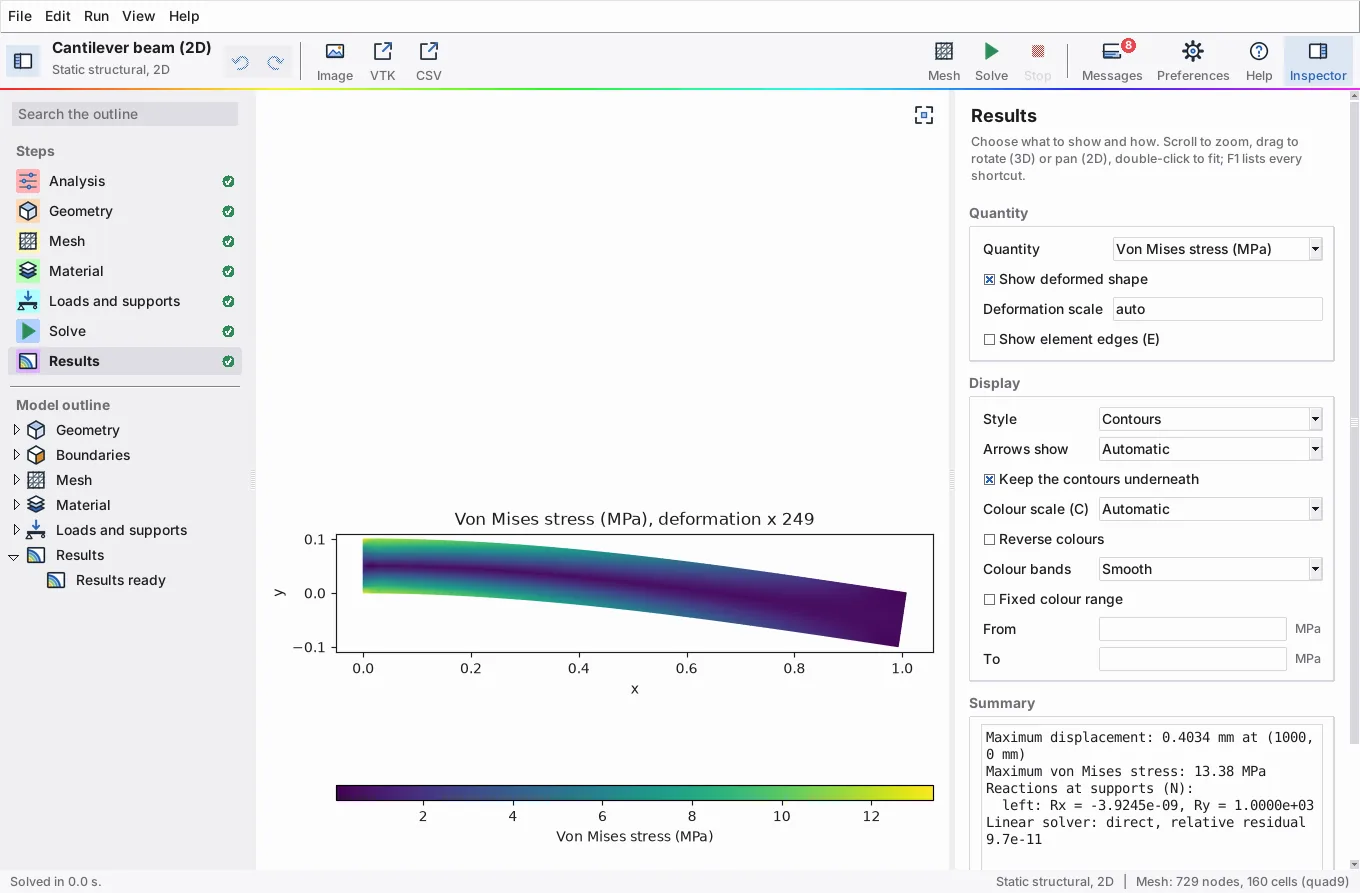
- Navigator (left, F9). A search field, the seven steps as a list (each with a coloured tile, red to violet in order, and a tick or a warning), and the model outline: shapes or features, named boundaries, the mesh, the material, loads and supports and the state of the results. The search field filters the outline (or the feature tree in the workspace); double-click a line to go to its step. In the workspace a Model / Drawing switch sits at the top.
- Inspector (right, Shift+F9). The form of the current step. It can be folded away (to a strip since 0.8.3) and comes back when a step or a feature is opened. Both side widths are kept between sessions.
- Messages (F10, or the Messages button, which shows a red count of unread messages).
- Backgrounds. A new "Mesh gradient" background (soft rainbow) is used behind parts in the design workspace and can be chosen for every view; the empty view shows the logo on it.
- Splash screen and icon made from the OxiPhys logo, with a rainbow progress bar.
- Setup program. See the install guide: a banner with the logo, the steps
down the left, option cards, a rainbow progress bar naming the current step, and a finish
page. The application is started as its own process (on Windows outside setup's job, on
Linux in its own session, on macOS through
open), so it keeps running when setup and its console close; setup waits a few seconds and reports an early exit with the end offirst-start.log.
New in 0.8.1, a compact layout for small screens (the 0.8.2 layout above replaces its top row of steps and the ribbon):
- The 218-pixel column of steps down the left was removed, so the view is that much wider.
- The side panel can be hidden to give the view the whole width; picking a step or opening a feature brings it back.
- Messages, residuals and the Python prompt are hidden until wanted. Errors open the panel at once, and a steady CFD run opens it at its residuals.
- A column of view buttons at the right-hand edge of every view (fit; in 3D, standard views and perspective; in the workspace, the display style) replaces Matplotlib's toolbar. The status bar shows the analysis and the mesh.
New in 0.8:
- Design workspace for 3D parts (Geometry step, "Build from shapes or import CAD"): the feature tree, the command bar, the property panel and the parametric sketcher described in section 1, with the Drawing switch for engineering drawings.
- Familiar names, own artwork. Tools carry generic names: Feature tree, Command bar, Property panel, Hole tool, Dimension, Project edges. The 49 new icons were drawn for OxiPhys.
- Keys in the workspace: Ctrl+B rebuilds; in a sketch, Esc ends a line, then leaves the tool, then clears the selection; Delete, Enter, Ctrl+A, Ctrl+Z and Ctrl+Y work as expected; double-click edits a dimension or a feature; middle drag and scroll pan and zoom a sketch or a drawing. F1 lists them all.
- A seventh tutorial, "Design a bracket in the CAD workspace (3D)": fully defined sketches, a fillet, a rib and the hole tool, a drawing with a section, then the stress. The flange and heat sink tutorials now use the workspace too. 21 examples, the new one being the angle bracket.
New in 0.7:
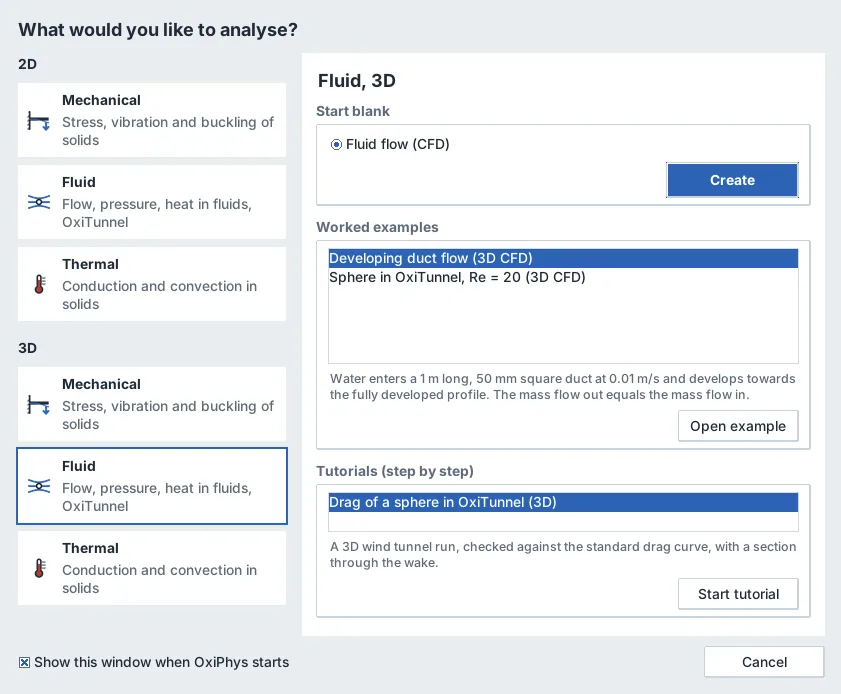
- New project window (Ctrl+N, and at start-up unless you turn it off): pick 2D or 3D, then mechanical, fluid or thermal, and start blank, open a worked example of that kind, or start a tutorial.
- Six tutorials (File, Tutorials; seven from 0.8), from a plate with a hole to a finned heat sink. A small window beside the model says what to click and type at each step; "Do this step for me" carries the step out, so nobody gets stuck. Each tutorial ends at the project of one of the examples, so the answer can be checked.
- Twenty examples (File, Examples; 21 from 0.8), sorted by 2D and 3D and by physics.
- A free 3D camera, as in CAD programs. The model turns in any direction, over the top and upside down, with nothing clamped; it rolls about the line of sight (Alt+left drag, or Shift+Left and Shift+Right); zoom has no limit, in or out. Mouse buttons follow the OxiPhys, SolidWorks or ANSYS style (Preferences); Ctrl+right drag zooms to a box; O switches between orthographic and perspective views.
- Kannada joins the languages.
From 0.6:
- Setup program for Windows, macOS and Linux. All the options come first (folder, Gmsh, shortcuts, commands on the PATH, language, units, theme, self-test); it installs for the current user without administrator rights, checks the result against beam theory and writes an uninstaller (on Windows, also an entry in Settings, Apps). See the install guide.
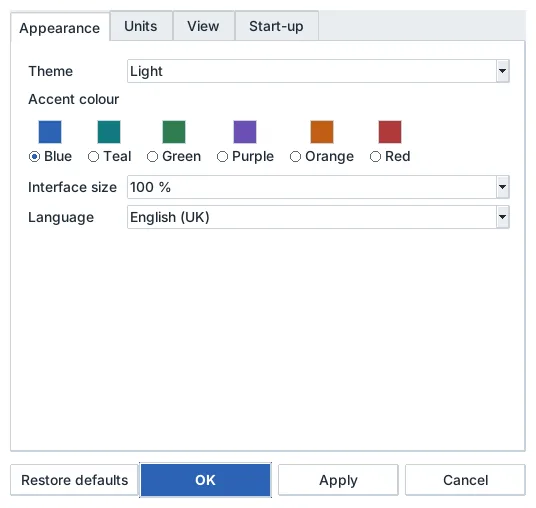
- Preferences (Ctrl+,): light, dark or high-contrast theme; six accent colours; interface size from 85 % to 150 %; language; units; the default display style, colour scale and background; the loading screen and its tips. Changes apply at once and are kept between sessions.
- Languages: English (UK), French, German, Spanish, Italian, Portuguese (Portugal), Hindi, Kannada, Simplified Chinese and Japanese. Every one of the 1621 interface texts (0.8) is translated; a test checks that none is missing and that every value placeholder survives.
- Units: SI; engineering (mm, N, MPa); US customary (in, lbf, psi, degrees Fahrenheit); or any unit per quantity (21 kinds, from length to heat flux). Fields, results, colour bars, summaries and CSV files use them. The project file always stores SI, with temperatures in degrees Celsius, so changing units never changes the model.
- Mouse (OxiPhys style): scroll to zoom at the pointer, drag to turn (3D) or pan (2D), middle-drag to pan, right-drag to zoom, double-click to fit, click to select a face, edge or point, Ctrl-click to add to the selection. The value under the pointer shows in the status bar (2D).
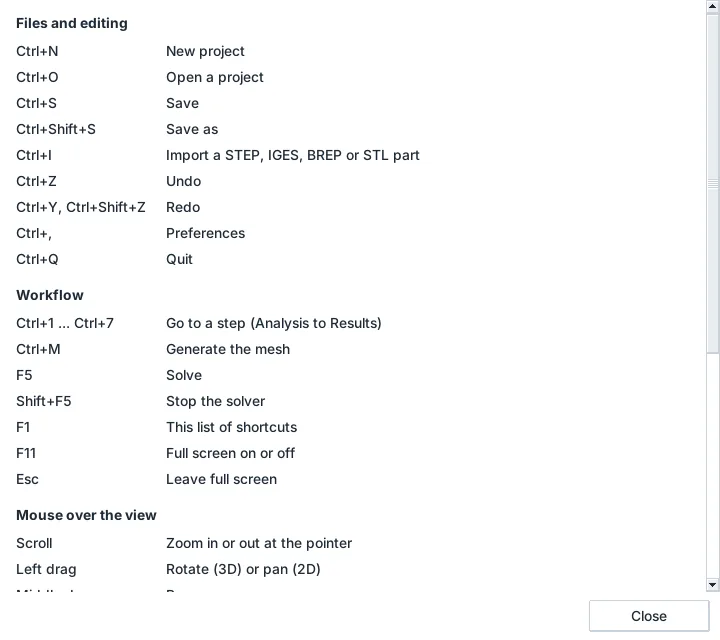
- Keyboard: Ctrl+Z and Ctrl+Y undo and redo any change to the model (60 steps); F1 lists every shortcut; F11 full screen; F or Home fits; I, X, Y, Z set the 3D view; + and - zoom; the arrow keys rotate or pan; E, S, C, B and P change edges, display style, colour scale, background and particles.
- Also: recent files, the window's size and place remembered, a loading screen with progress and a tip, a description of every example, and a credits roll (Help, Credits).
7. Limits
- No compressible or multiphase flow, conjugate heat transfer, wall functions or moving meshes. The SST model needs walls resolved to a first-cell y+ of about 1 or less.
- No shells, beams, friction or contact between deformable bodies.
- The structural and thermal solvers need one element type per mesh. Prisms and pyramids are for CFD only.
- Several features are Python only: transient dynamics, large deflection and contact.
- The design workspace makes single parts. There are no assemblies, mates or exploded views, and no sheet metal, surfacing or weldments.
- Drawings have no geometric tolerancing frames, datum symbols, surface texture symbols, weld symbols or zone letters in the border. Threads are cosmetic: the hole tool drills the tapping size and notes the thread, and a modelled thread is its major diameter (the minor diameter can be drawn as a thin line). The isometric view is a line drawing, not shaded. Hidden-line removal works on a faceted copy of the surface, so on very fine features a short piece of line can be lost or left; the PDF is the reference, and the DXF is plain R12 lines and text for further work in a CAD program.
- Mass properties come from the faceted surface: exact for flat faces, within about 0.1 % where faces are curved (-9.1e-5 in volume on EP-01).
- A rib is a wall of the depth you give; it does not grow until it meets the part. Draft is available on extrusions only. An outward shell rounds the outer edges (OpenCASCADE's arc joins), which a sharp-cornered shell would not.
- Sketches lie on the three base planes, on reference planes or on flat faces (through a plane made on the face); there is no sketching on curved faces and no 3D sketch.
- 2D models keep the sketcher dialog of 0.7; the parametric sketcher is for 3D parts.
- Fillet and chamfer edges are stored by position. If an earlier feature changes so that the edge moves, pick the edges again (meshing stops with a message naming the edge that was not found where it was picked).
- "Through all" cuts reach through the whole model in both directions from the sketch plane.
- Sections are drawn on the undeformed shape. Quadratic cells are cut through their corner nodes, so a section of a Tet10 result is a piecewise-linear picture.
- The library stores thermal expansion coefficients, but no solver uses them yet (no thermal stress). Most hardening moduli are bilinear estimates; the library is a starting point, not certified design data.
- OxiTunnel is validated at Re = 20 (cylinder and sphere). Higher speeds need the SST model, fine meshes at the body and patience; bluff bodies such as cars have not been compared with experiments.
- Single-threaded solvers. The STEP cantilever with 24 484 Tet10 cells took about three minutes on one core, meshing included.
- CAD import relies on Gmsh and its OpenCASCADE kernel. Clicking picks the face, edge or point whose sample points lie nearest the pointer on the screen, preferring the one nearest the eye; on crowded 3D models the list is more precise.
- 3D arrows and dots are drawn over the surface, so those on hidden faces show through. Streamlines and moving particles are for 2D flow only.
- A force on an edge is shared equally by its nodes. The total force and its line of action are right, but on quadratic elements this is not the work-equivalent distribution of a uniform line load, so stresses right at the edge differ a little.
- The translations are my own first drafts and have not yet been checked by native speakers; corrections are welcome. On Linux, Tk draws Hindi and Kannada with vowel signs and conjuncts out of place, because it does not shape complex scripts (plots are drawn correctly by Matplotlib 3.11). Windows and macOS shape text in the system, which should draw both correctly with Nirmala UI or the Sangam fonts, but I have not been able to check either language there.
- The faces of an imported part are numbered by Gmsh. The numbers stay the same as long as the file and the import options do not change.
- The rounded look covers ttk's widgets and the canvases OxiPhys draws itself; tooltips, menus and the command search's list stay square (Tk cannot round a window), and native menu bars and file dialogs keep the system's look. The glass is painted, not live: Tk cannot blur what lies behind a widget, so each platter and card is drawn on the colour or picture under it, and the view buttons' platter matches the 3D view's backdrop near the corner, not the part when it passes behind. San Francisco is not shipped (Apple's licence); Inter stands in for it on Windows and Linux. The 0.8.6 and 0.8.7 looks were checked here on Linux only.
- Detail views copy the lines of the view they come from; they do not show anything the view hides, and hidden lines stay dashed. The automatic layout does not move views apart when a dimension placed by hand runs into another view: drag the view (0.8.7).
- Swept hexahedra are used only for parts made by one extrusion less holes right through it; parts with bosses, pockets, fillets or revolved features keep the mapped method with subdivided tetrahedra, whose hexahedra are much poorer (mean quality about 0.5). For those, quadratic tetrahedra (tet10) are the better choice.
- Multigrid is chosen from an estimate of its memory (five times the matrix), which is rough; measured peaks were 3.1 to 4.4 times those of the SSOR solves on the benchmark cases.
- The OpenGL view was tested by hand on Linux with Mesa's software renderer; on Windows the WGL path runs in CI, not yet on a real graphics card. It does not draw the silhouettes of curved faces (the Matplotlib view does not either). macOS keeps the Matplotlib view.
- Version 0.5 was installed and used on Windows. The 0.6 setup program was tested here on Linux; the Windows and macOS paths (shortcuts, the Settings entry, the PATH) are written to each system's documented conventions and run in CI on all three systems, but have not yet been tried by hand. From 0.9.0 each setup bundle carries compiled wheels only (Windows x64, macOS universal2 for Intel and Apple silicon, Linux x86_64 and aarch64); the Python modules are compiled to native code with Cython, which makes tracebacks show the module and line but not the source text.
8. Pictures
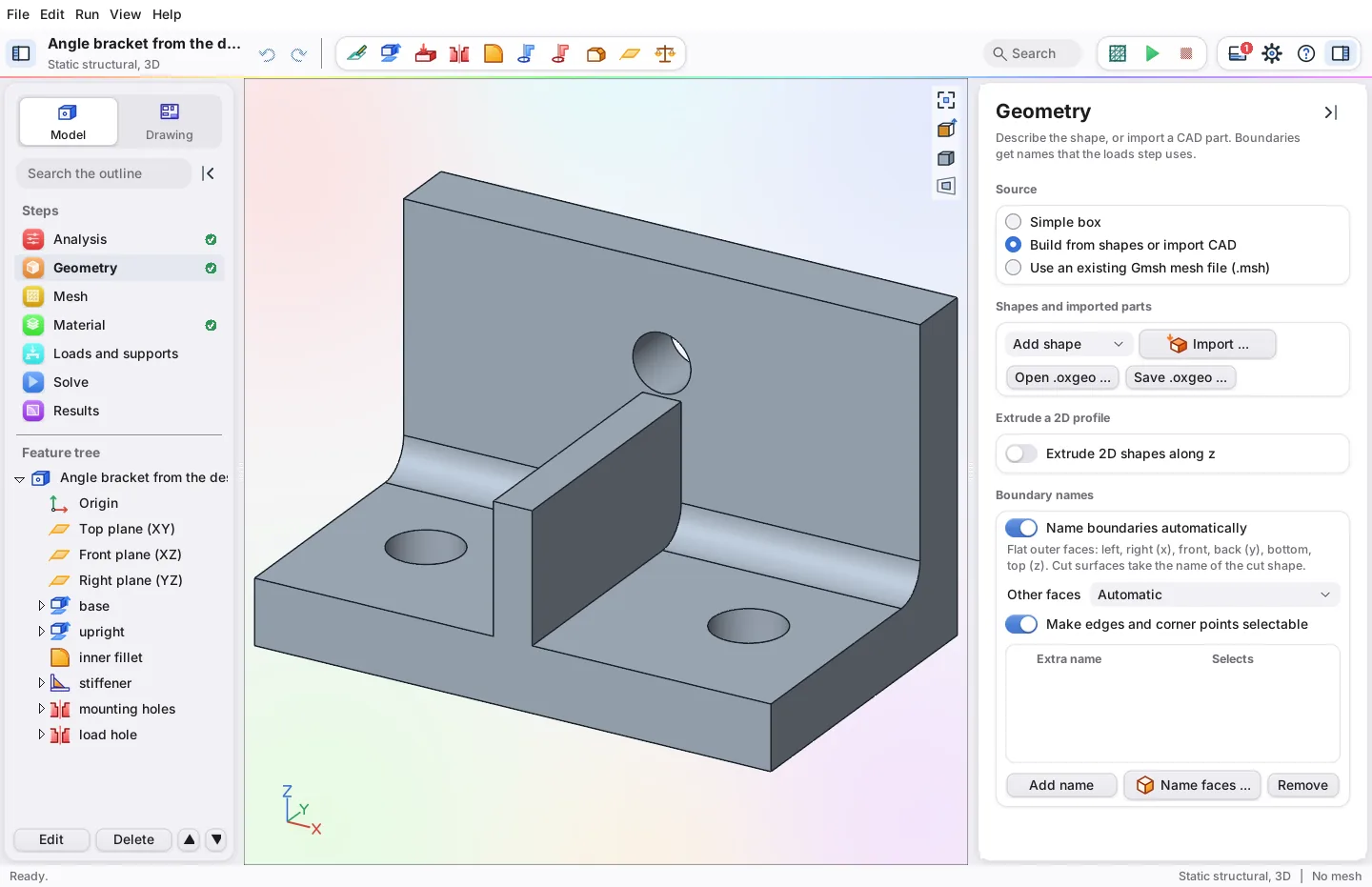
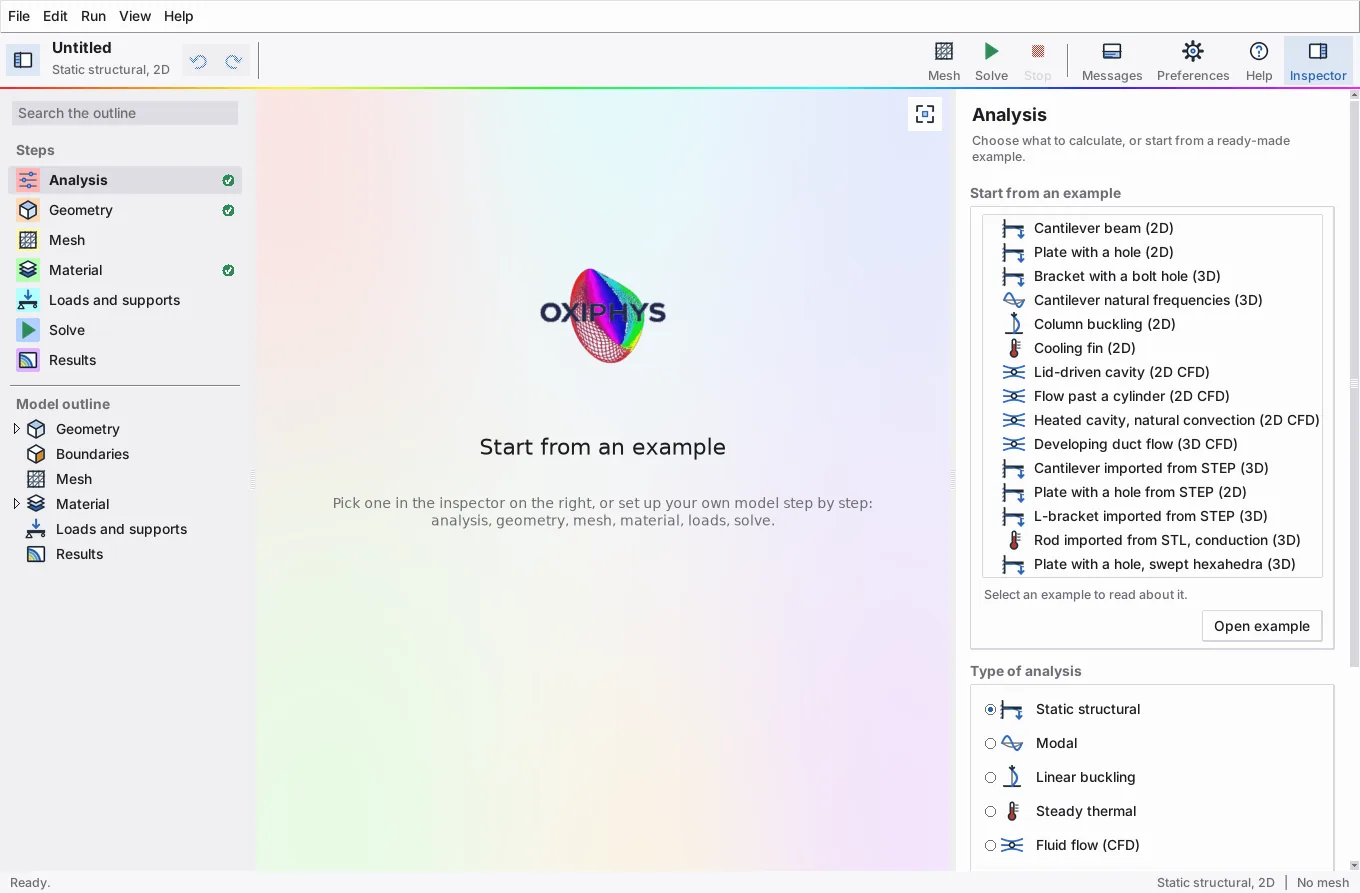
The design workspace with the angle bracket: the toolbar with the design commands, the navigator with the Model / Drawing switch, the steps and the feature tree, the inspector, and the part on the mesh gradient:
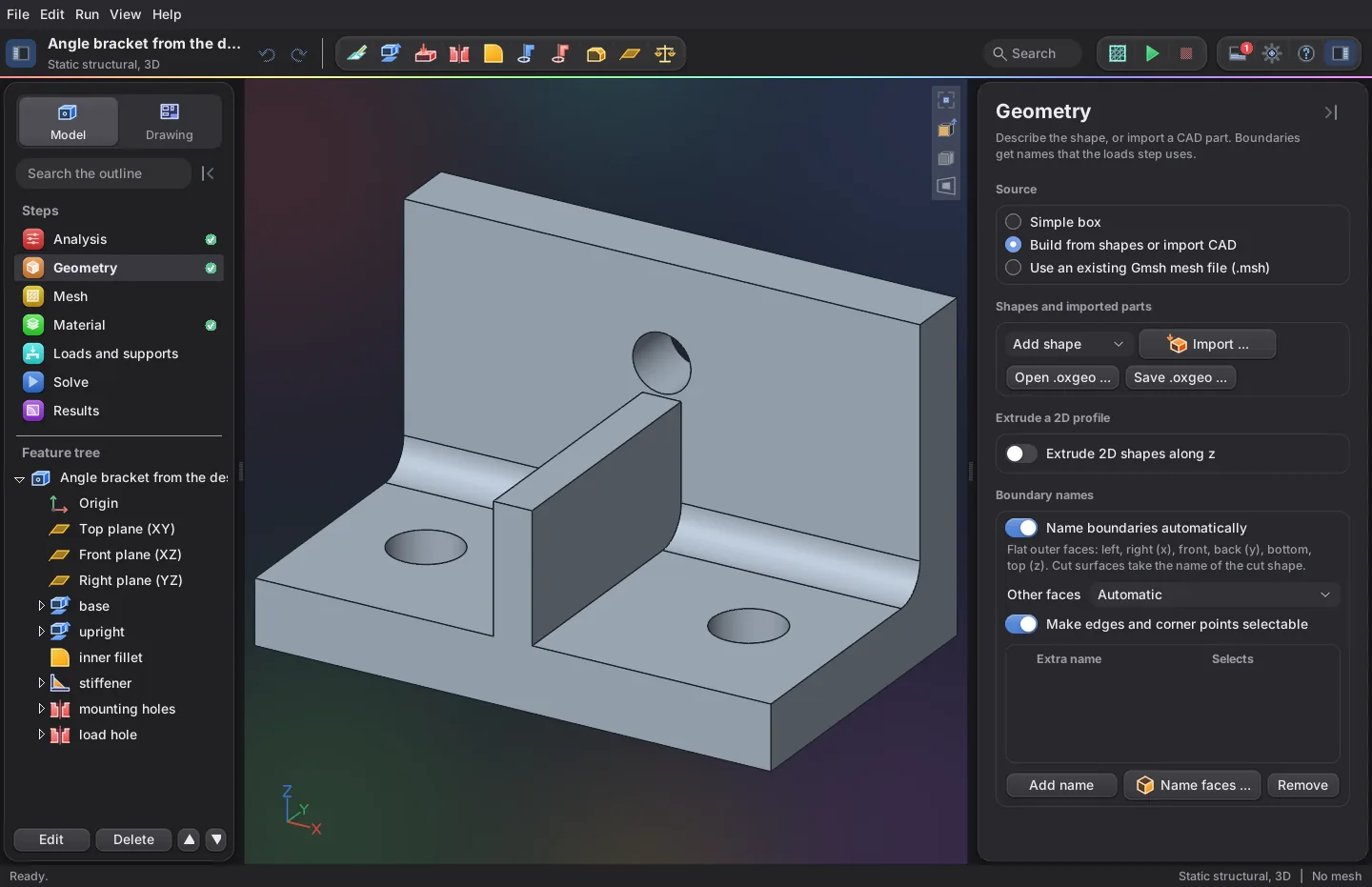
The same in the dark theme:
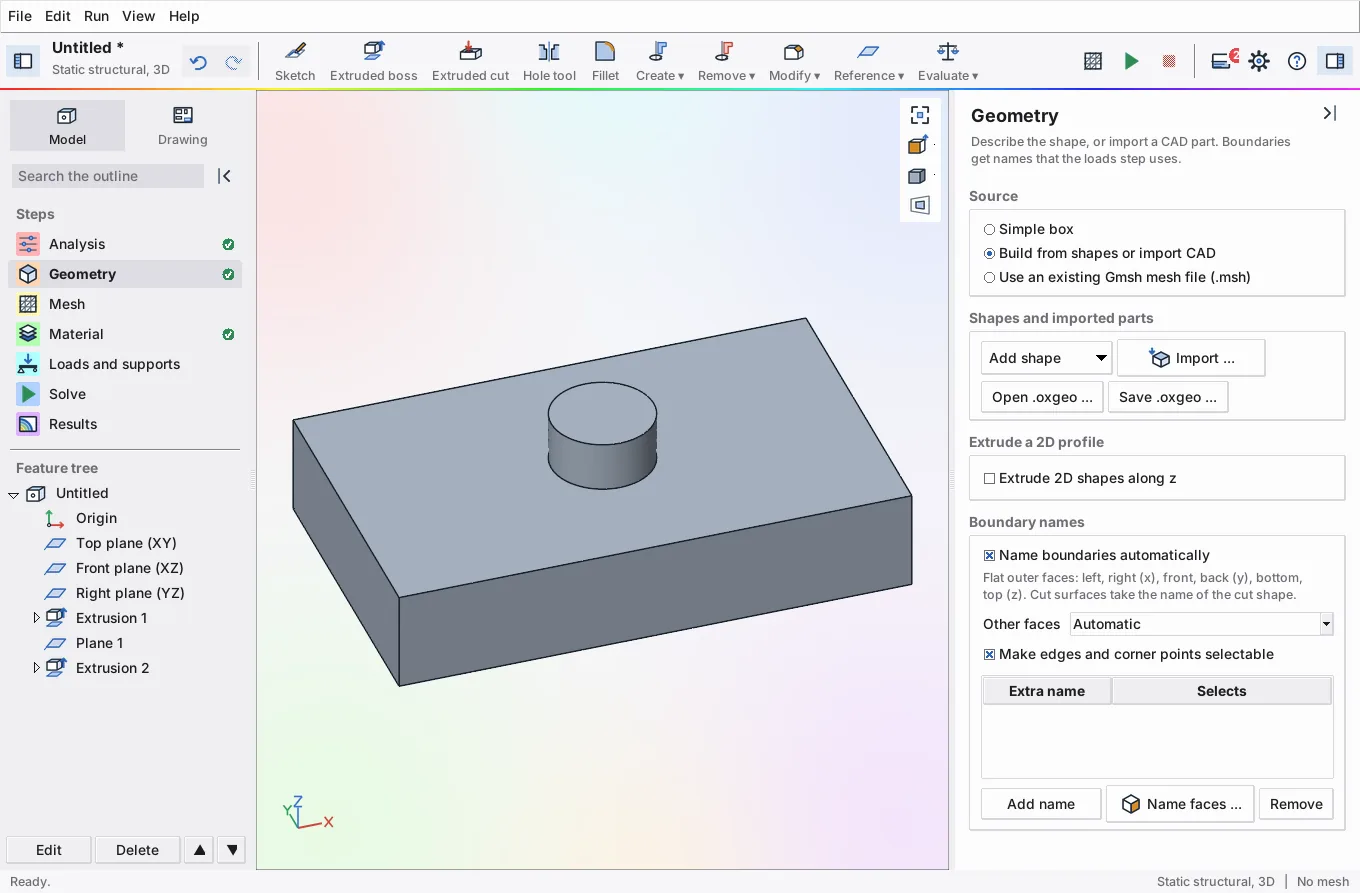
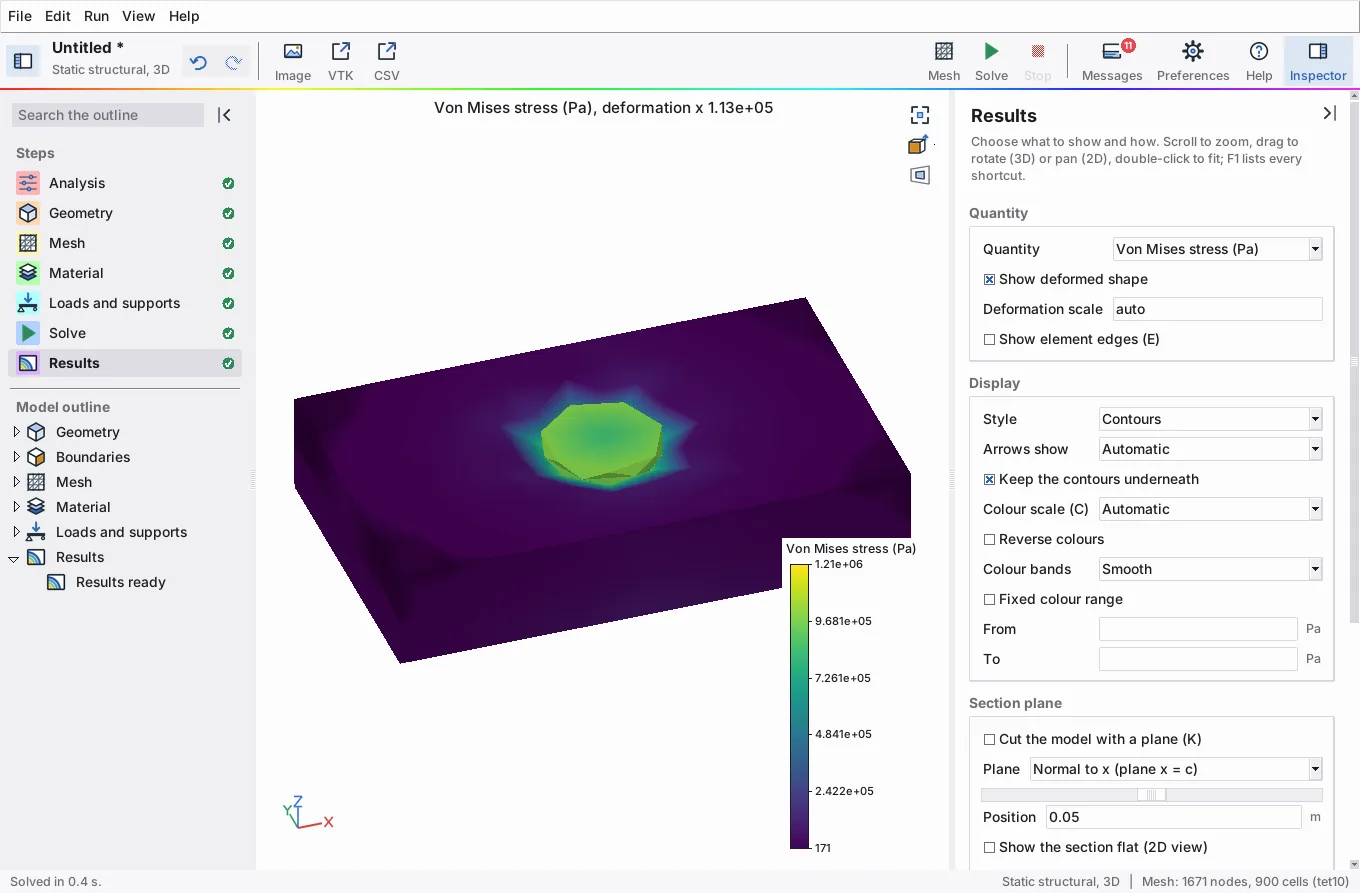
The OpenGL view (0.8.5): a block with a boss sketched on its top face, and the von Mises stress with the underside ("bottom") fixed and a pressure of 1 MPa on the boss ("top", the highest face):
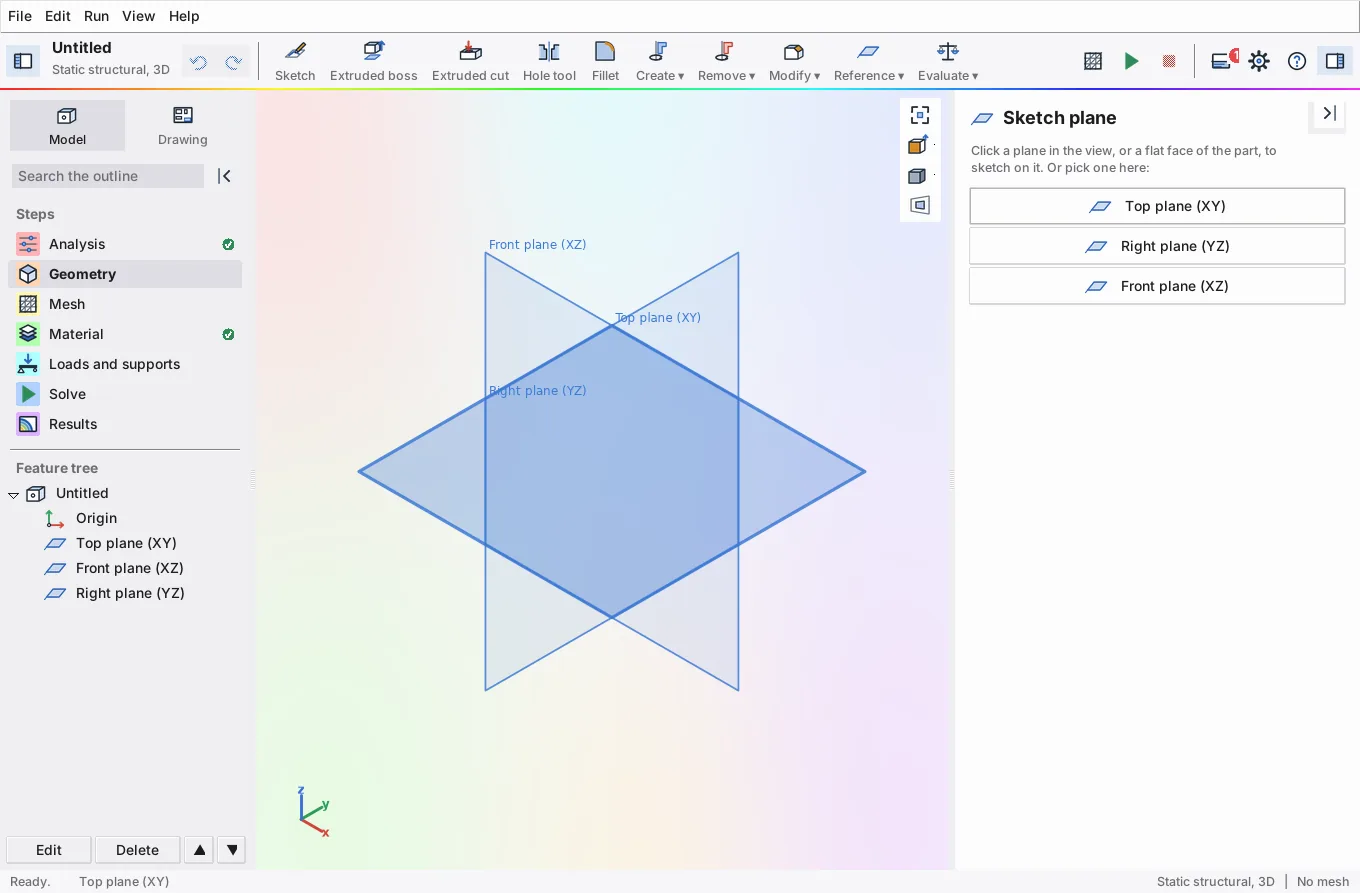
The welcome window and choosing the plane of a new sketch (0.8.4):
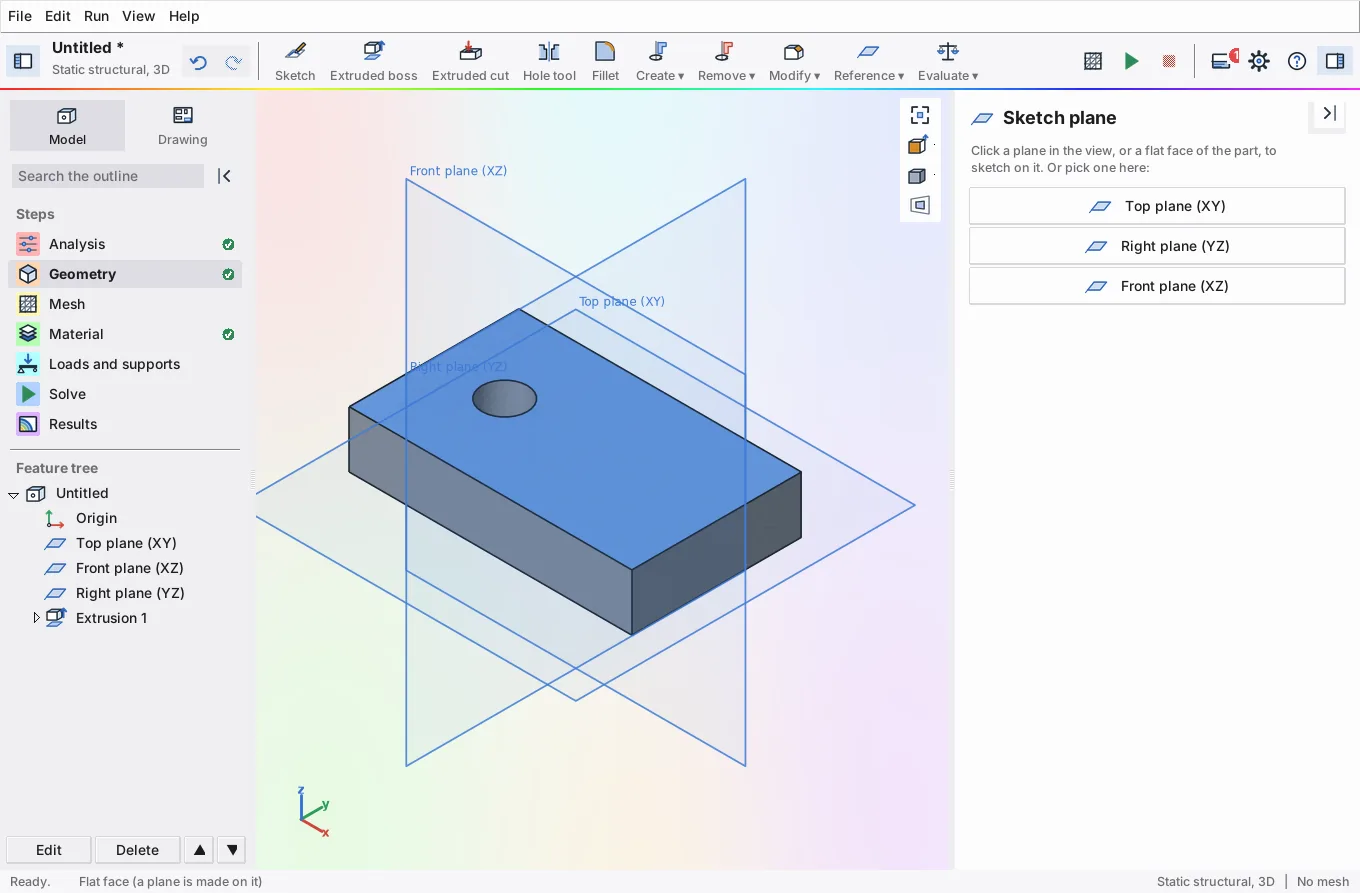
Sketching on a face after the first extrusion: the face under the pointer lights up:
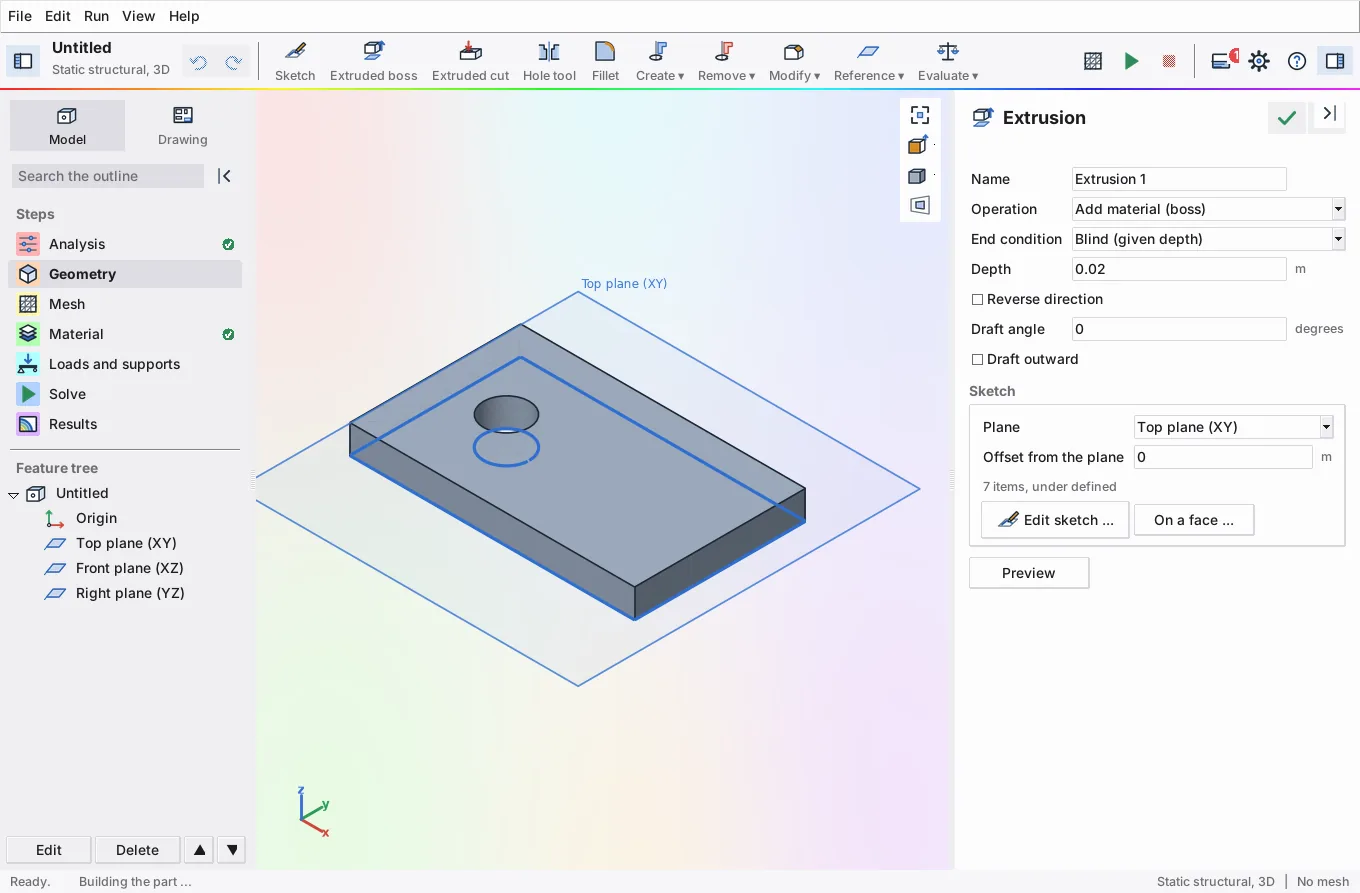
The sketch drawn on its plane while the extrusion is set up, and snapping in the sketcher (the dotted guide lines the new point up with a corner):
Both side panels folded to strips (0.8.3): the steps on the left, the current step's name on the right:
A small window (1024 x 680) with the navigator and the inspector folded and the messages panel open; the fixed toolbar commands have dropped their labels:
Results of the cantilever with the model outline in the navigator:
The empty view:
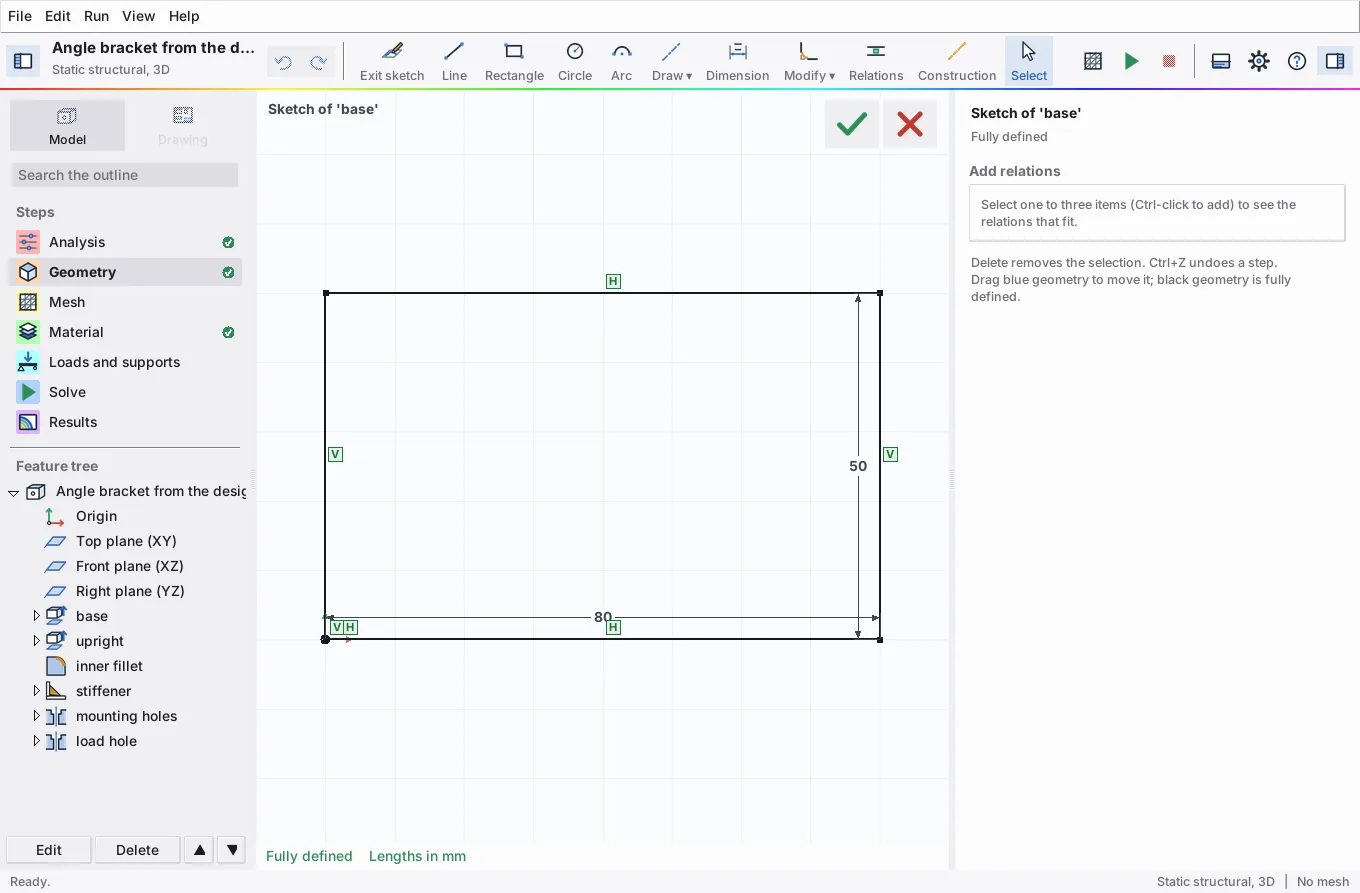
The base sketch of the bracket, fully defined by two dimensions and the origin (black), with its relation badges:
The hole tool in the property panel (inspector): counterbored M6 holes, normal fit, through all:
Mass properties of the bracket in structural steel:
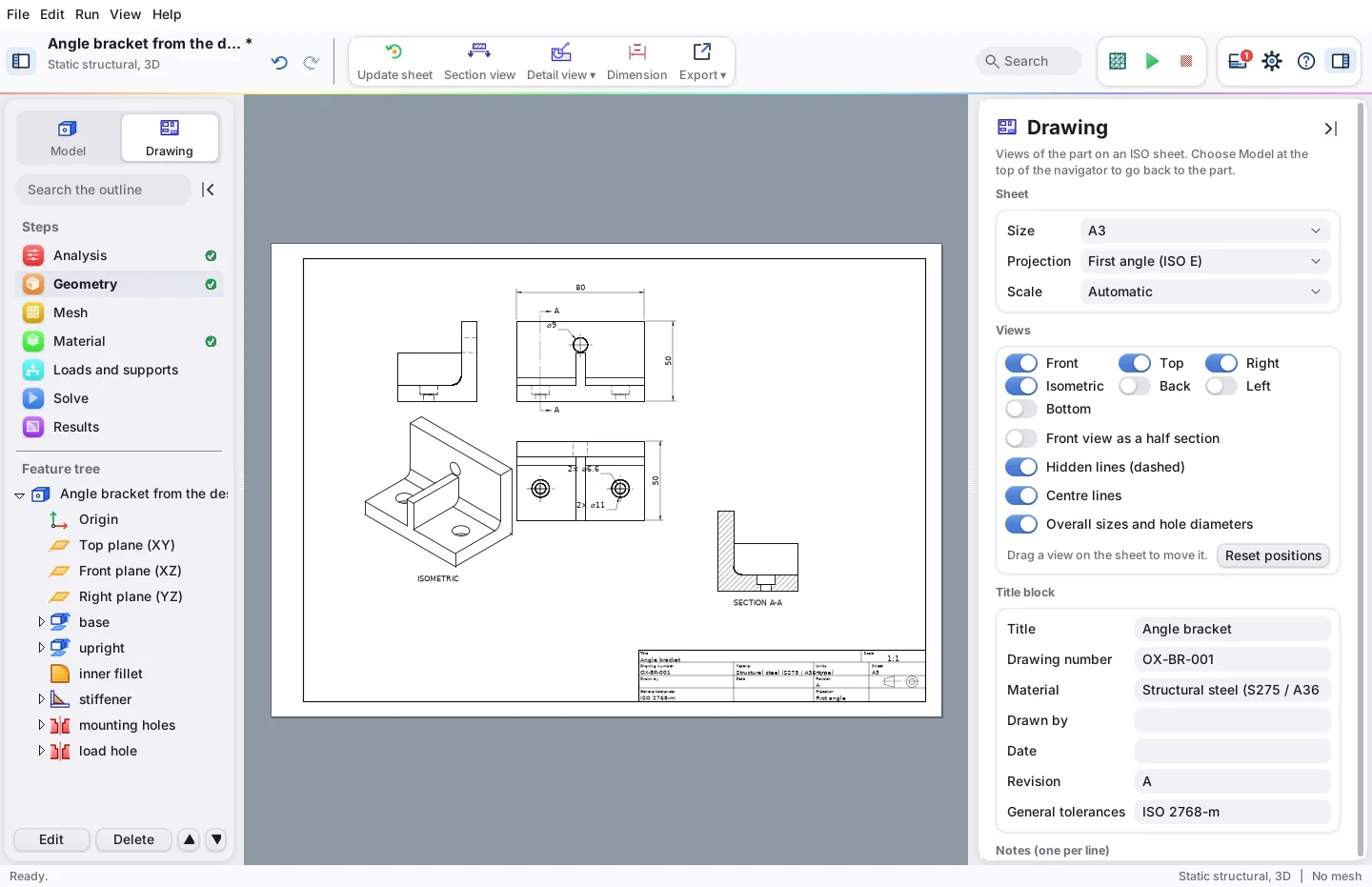
The bracket's drawing on A3 with a section A-A, its isometric view dragged to the lower left (0.8.7):
A detail view (0.8.8): the circle round part of the front view, drawn again at 2:1 under the side view, and a dimension placed on the top view:
A dimension drawn live while it is placed, the snap rings on the corners:
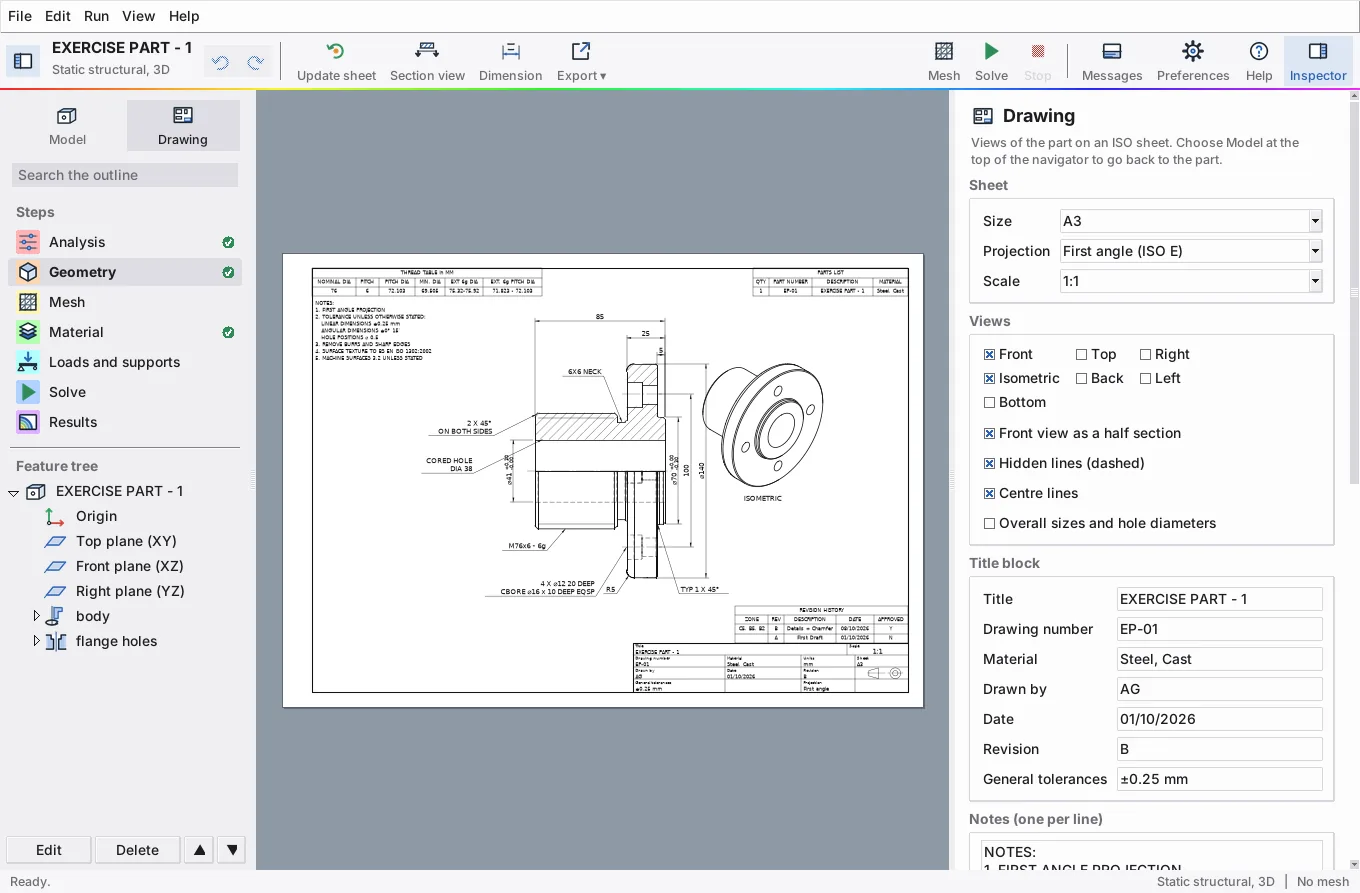
The EP-01 exercise part reproduced as a test (VALIDATION.md, 6.12): a half section, an isometric view, toleranced diameters, leader notes, a thread table, a parts list and a revision history:
From 0.7:
The New project window: 3D fluid, with its examples and tutorial:
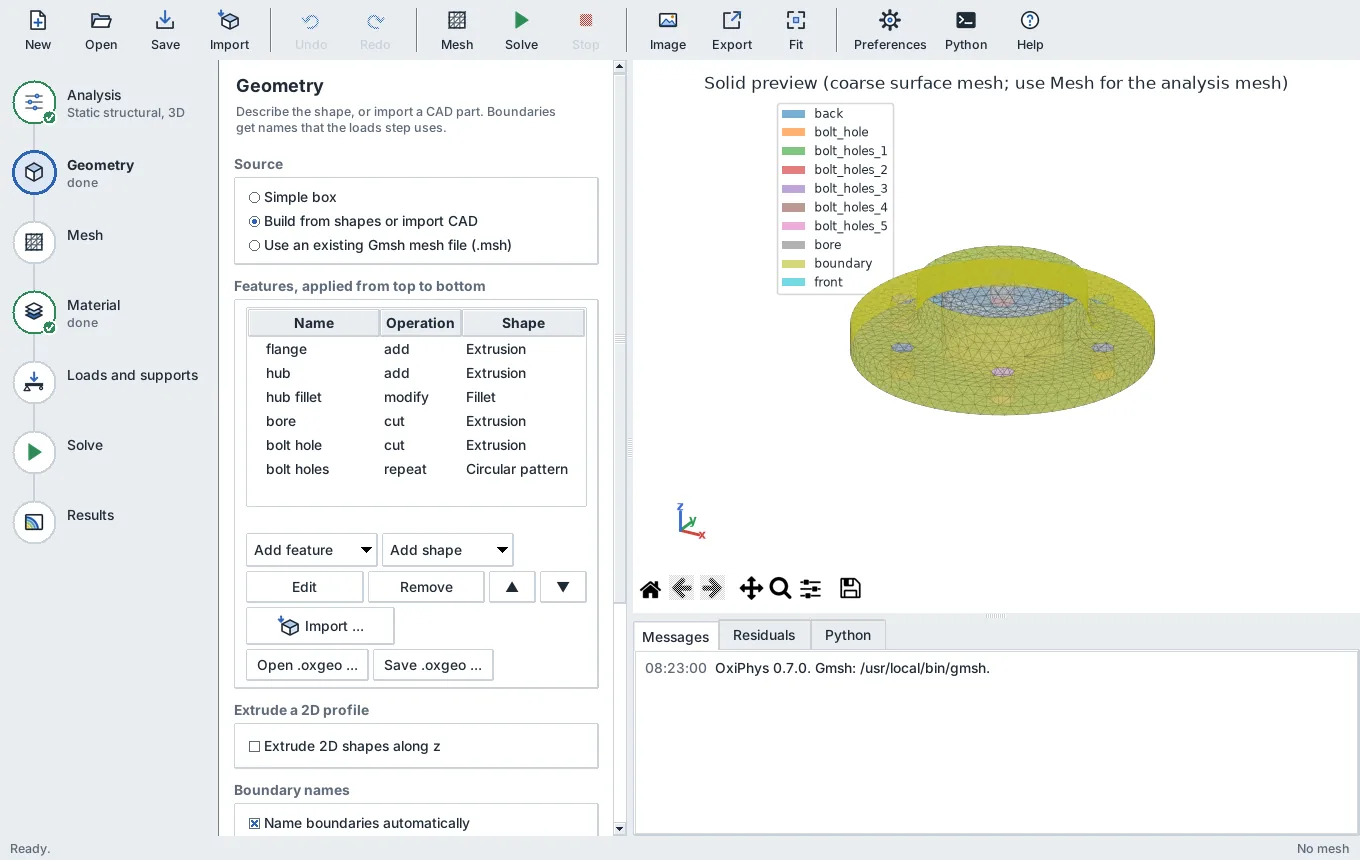
The flange built from sketch features in 0.7 (extrusions, a fillet, a cut through all and a circular pattern of bolt holes), previewed as a solid; 3D parts now use the design workspace:
The 0.7 sketcher, still used for 2D models, with a rounded rectangle selected and its sizes in the form:
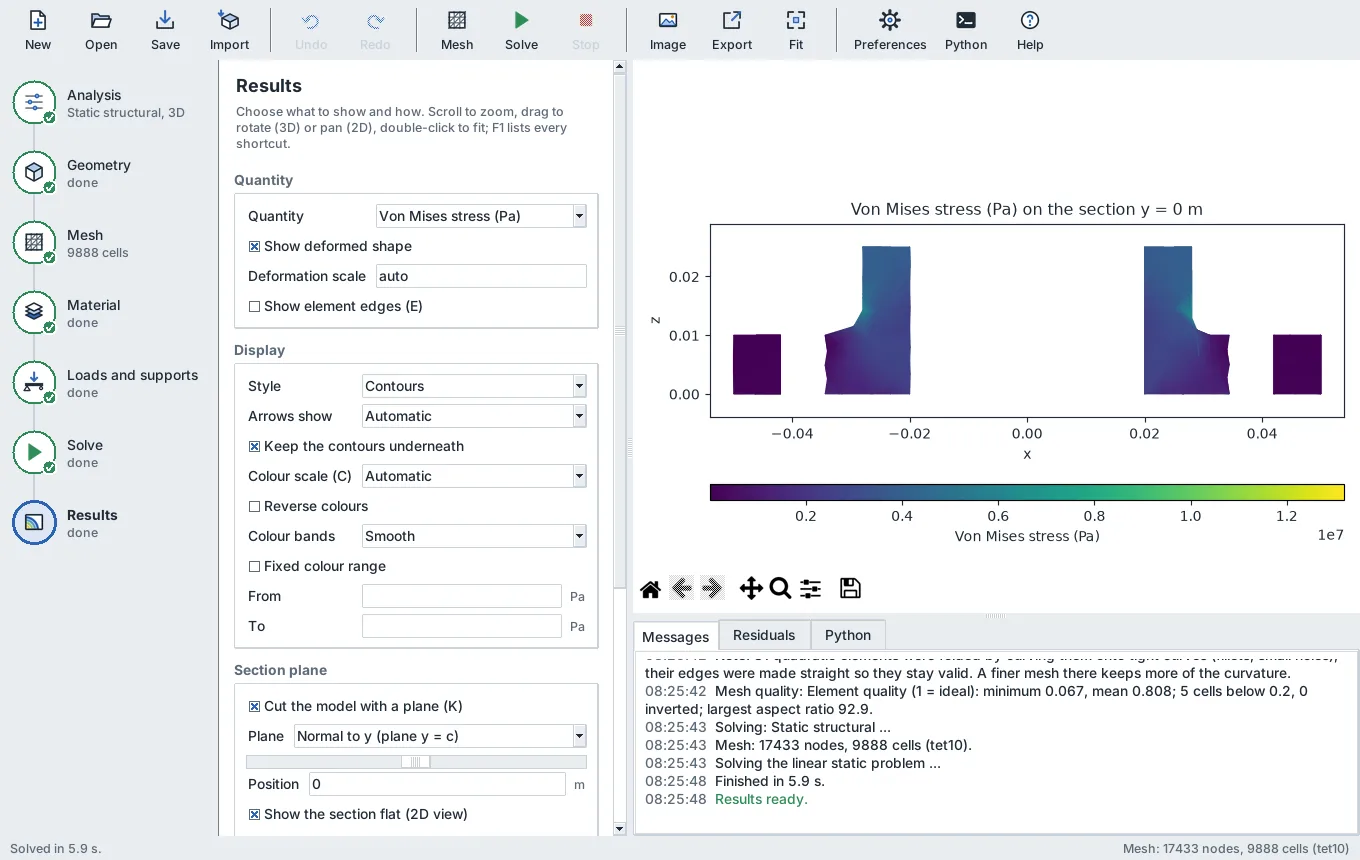
A section through the flange at y = 0, shown flat: the fillet carries the load from the hub into the disk:
OxiTunnel's settings, and the sphere at Re = 20 with the velocity on the section z = 0:
The materials library:
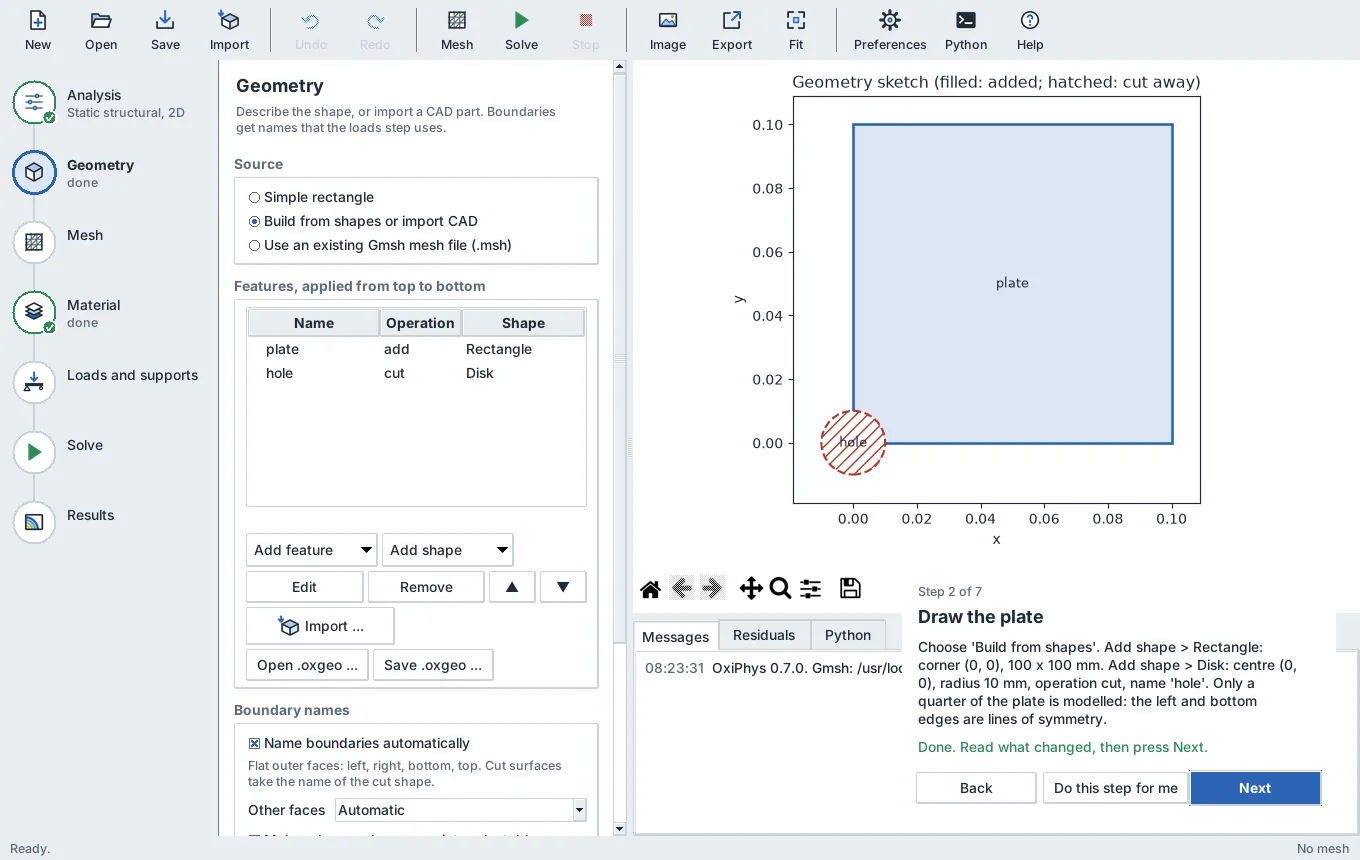
A tutorial step, carried out with "Do this step for me":
From 0.6 and earlier:
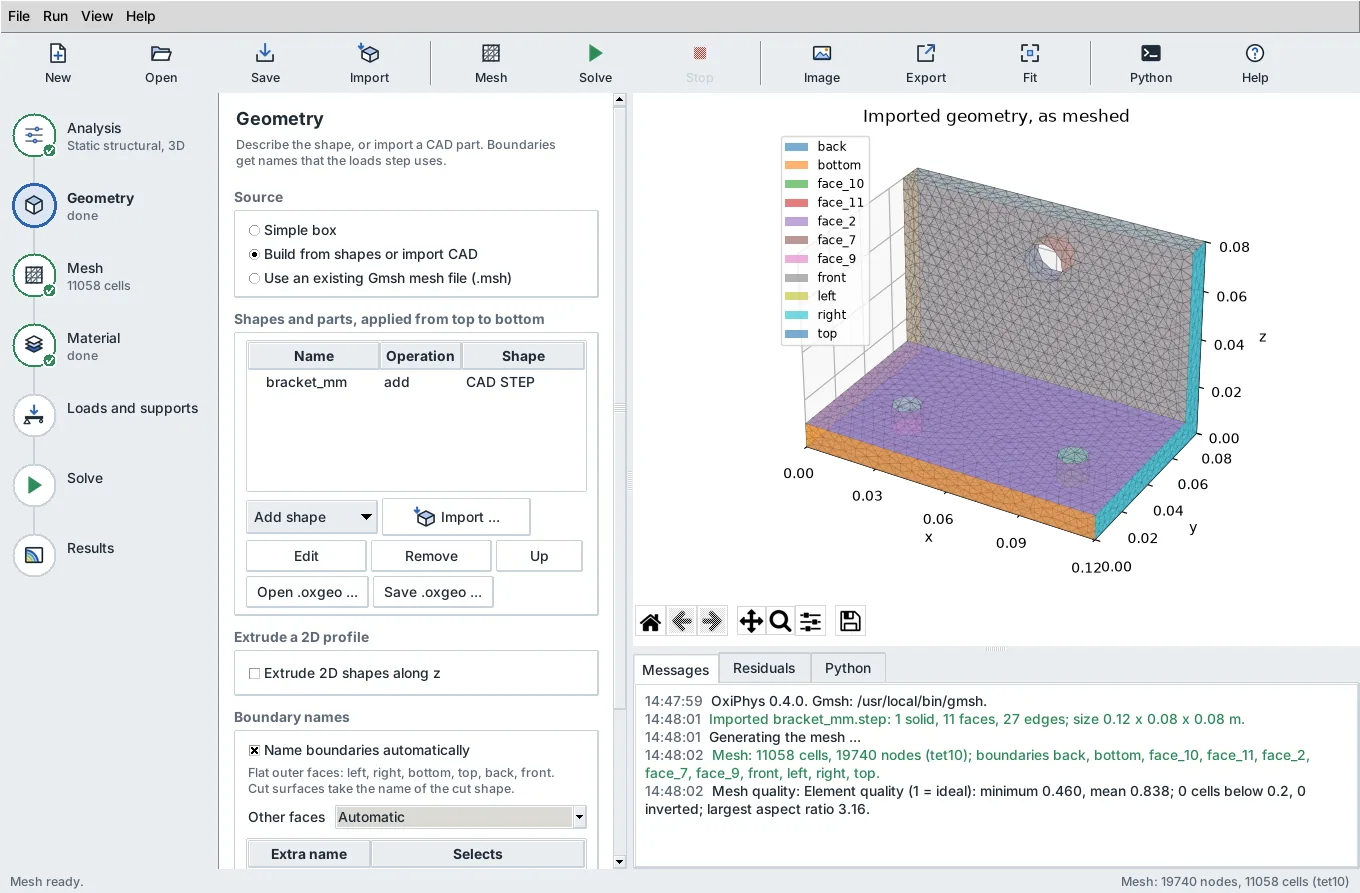
An L-bracket imported from STEP and meshed with Tet10 cells:
Naming the two bolt holes, picked from the face list:
The quality of every cell:
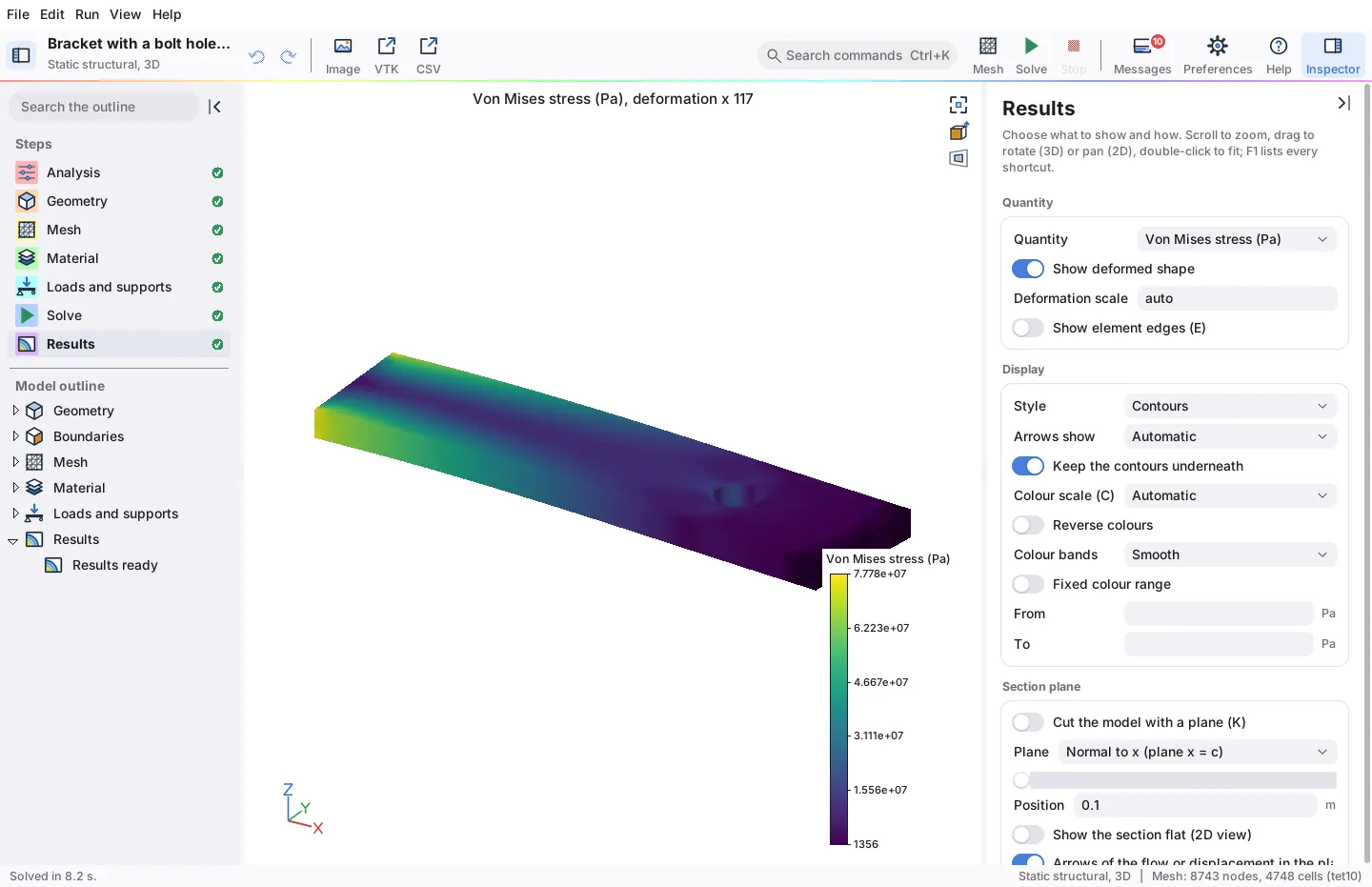
The bracket's von Mises stress; the bolt reaction equals the 2000 N load:
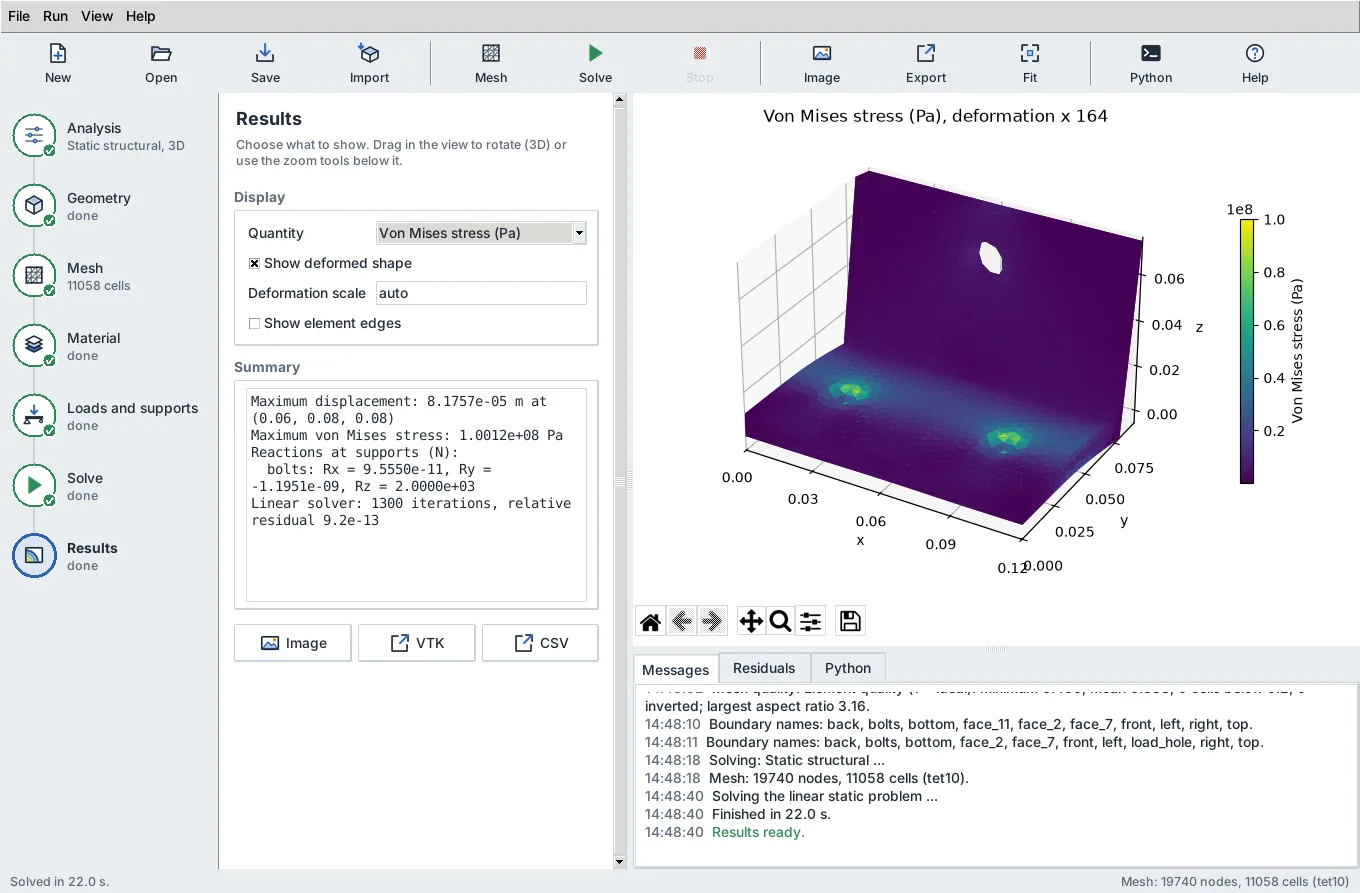
A disc with a hole through it, meshed with Mapped and Hexahedra (0.8.7): the part is one extrusion less a hole right through it, so its hexahedra are swept through it from a quadrilateral profile (1,040 cells, mean quality 0.94):
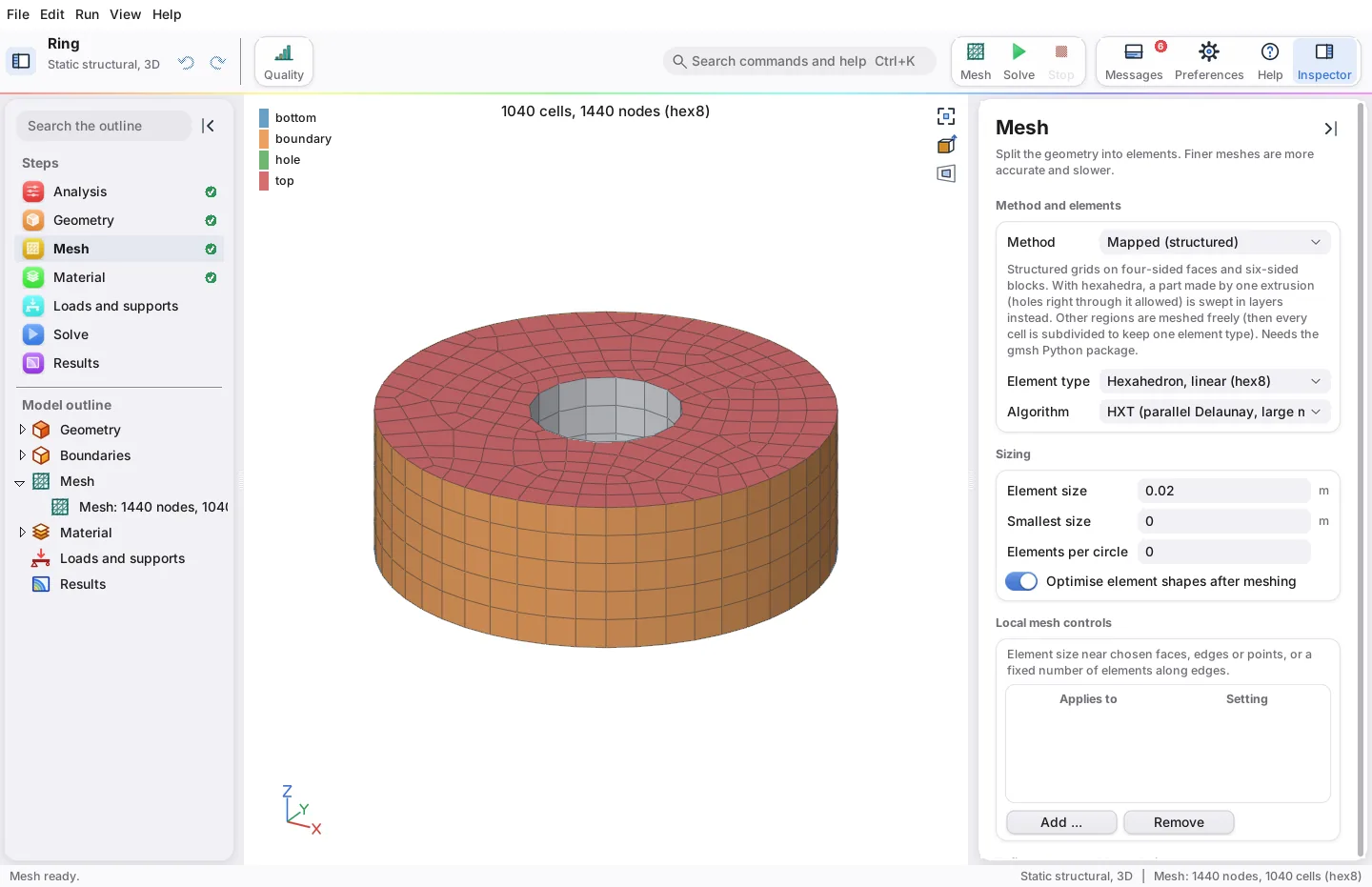
Flow past a cylinder, with residuals plotting live while the solver runs:
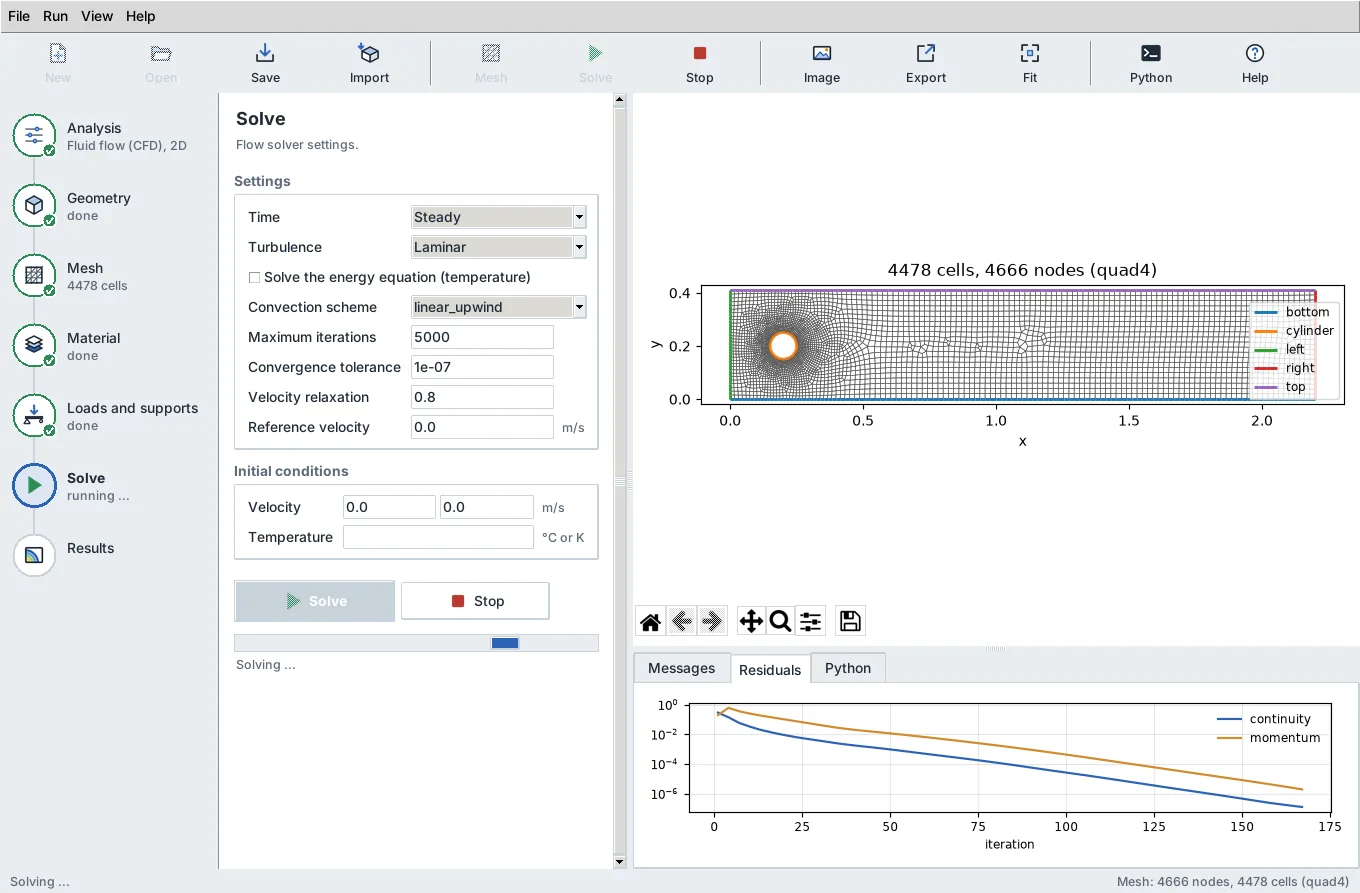
The built 3D bracket example, with its results:
Principal stress directions round the hole (red: tension, blue: compression):
Moving particles in the wake of the cylinder:
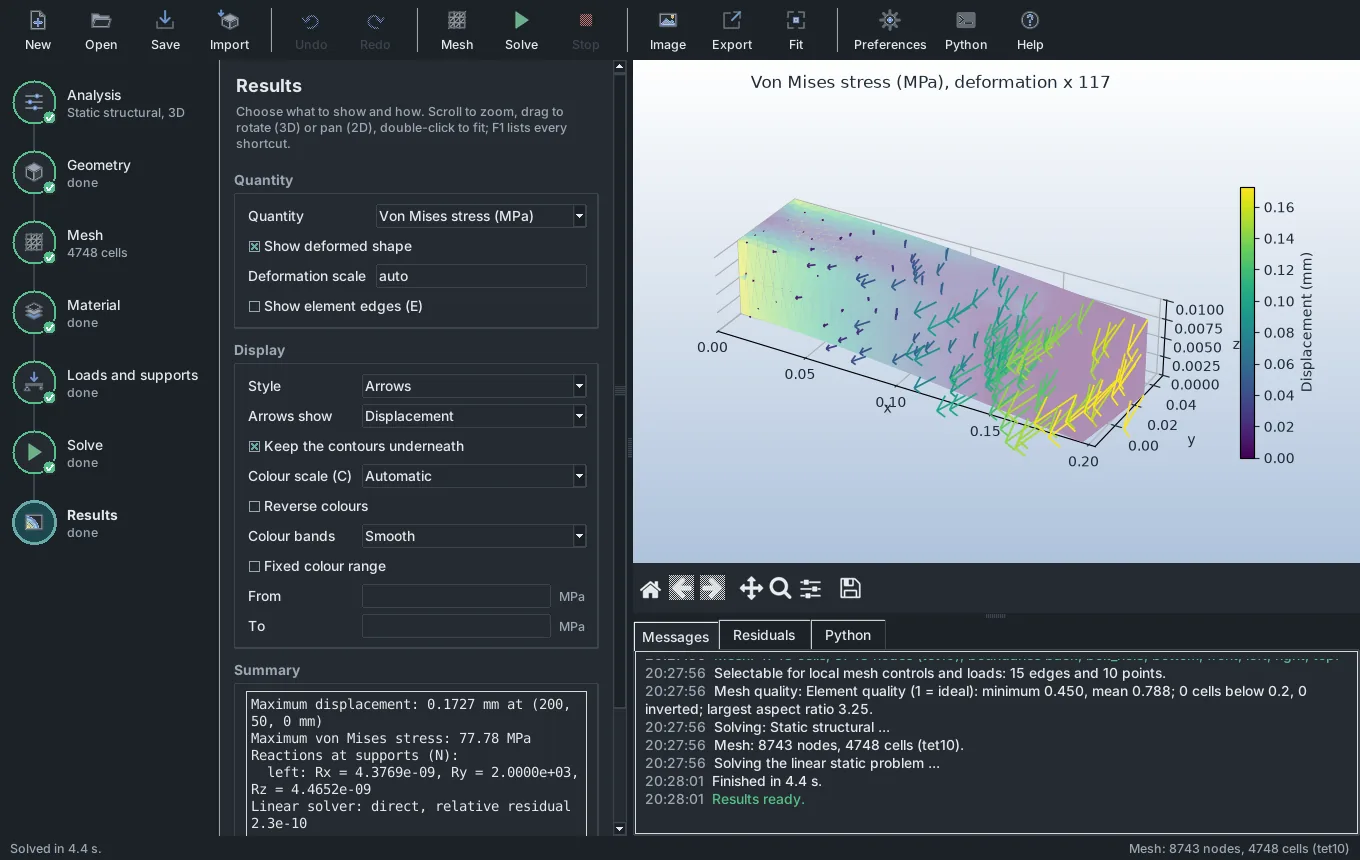
The dark theme with millimetre units and displacement arrows on the bracket:
A local mesh control: element size 10 mm near the face picked in the view:
Preferences and the shortcuts card:
The window in Japanese: